Setting Aspect Ratio in Descript: Beginner Guide
Sep 21, 2026
Direct answer: In Descript, set your composition’s aspect ratio from the box icon in the top-left of the Scene Editor—pick Landscape (16:9), Portrait (9:16), Square (1:1), or a custom ratio. Those three shapes cover most publishing destinations (YouTube, Shorts/Reels/TikTok, and square social feeds), and Descript supports all of them plus custom sizes.
This beginner guide is grounded in the Descript Made Easy lesson “Setting Aspect Ratio” (Core Skills / Create Your First Project). Pair it with Aspect Ratio Explained and Pick Your Aspect Ratio Before You Hit Record so you choose the shape before you record, then lock it in Descript.
This article was written with AI, based on a real Descript Made Easy lesson by the humans behind Descript Made Easy.
Why does aspect ratio matter before I edit?
Not every video is the same shape. The shape depends on where you’re going to put it. If you shoot or edit in the wrong ratio, you spend time cropping, letterboxing, or re-exporting later. The course lesson focuses on the three ratios that cover about ninety-nine percent of real situations.
What are the three most common aspect ratios?
- 16:9 (landscape) — Longer than it is tall. Standard for modern TVs and computers. YouTube’s main feed uses it; Facebook, X (Twitter), and LinkedIn take it too. Hold your phone sideways to shoot this shape.
- 9:16 (vertical / portrait) — Taller than it is wide. Common for TikTok, Instagram Reels and Stories, YouTube Shorts (different from the regular YouTube feed), and Snapchat. Optimized for full-screen mobile and app-based platforms.
- 1:1 (square) — Equal width and height. Useful for Instagram feeds, Facebook feeds, X, and LinkedIn when you want a balanced square frame.
Descript supports all three and custom aspect ratios, so you can match almost any destination. Start with these three unless you have a specific custom need.
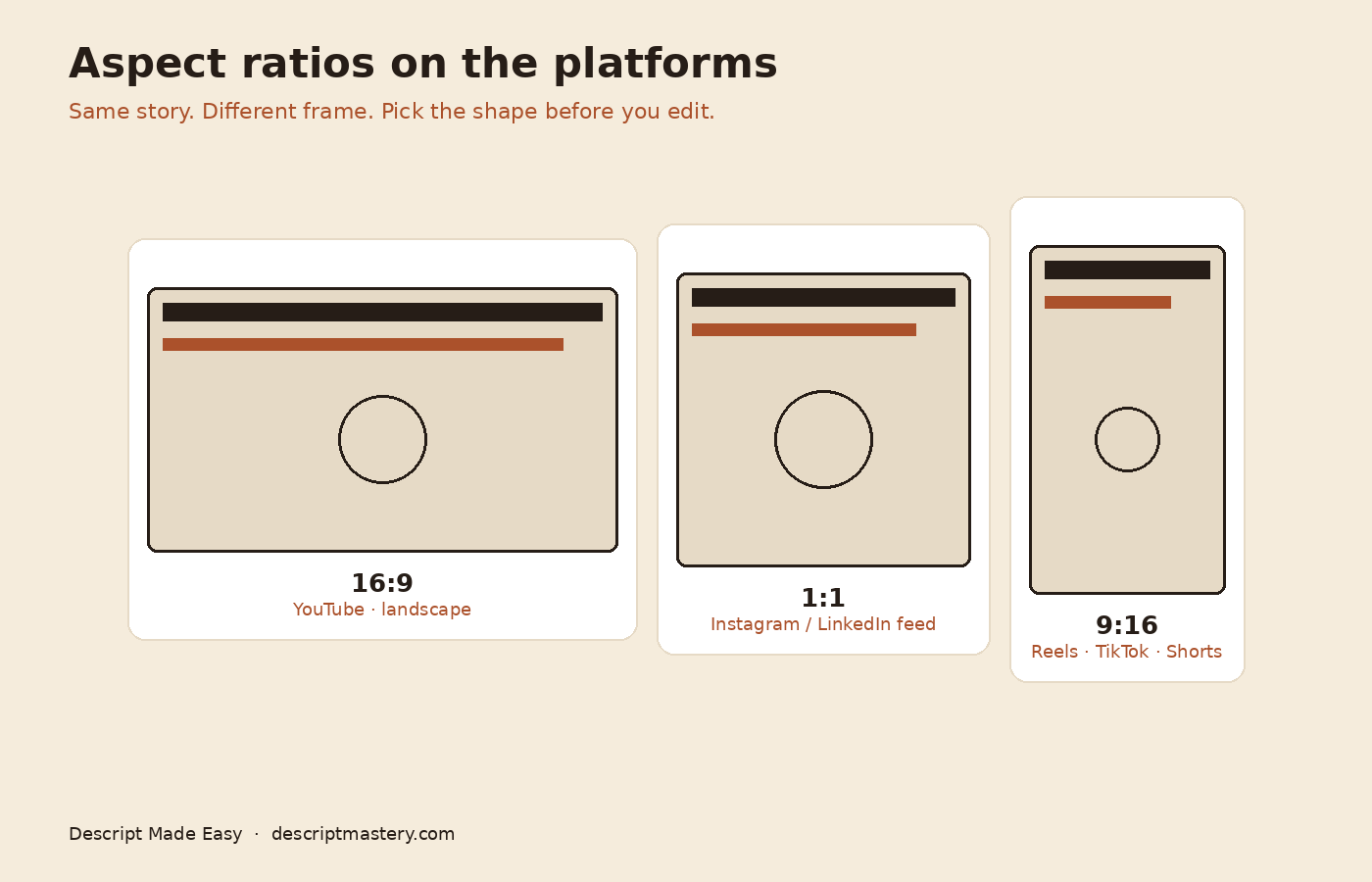
Cream teaching visual: how 16:9, 1:1, and 9:16 frames look for common platforms.
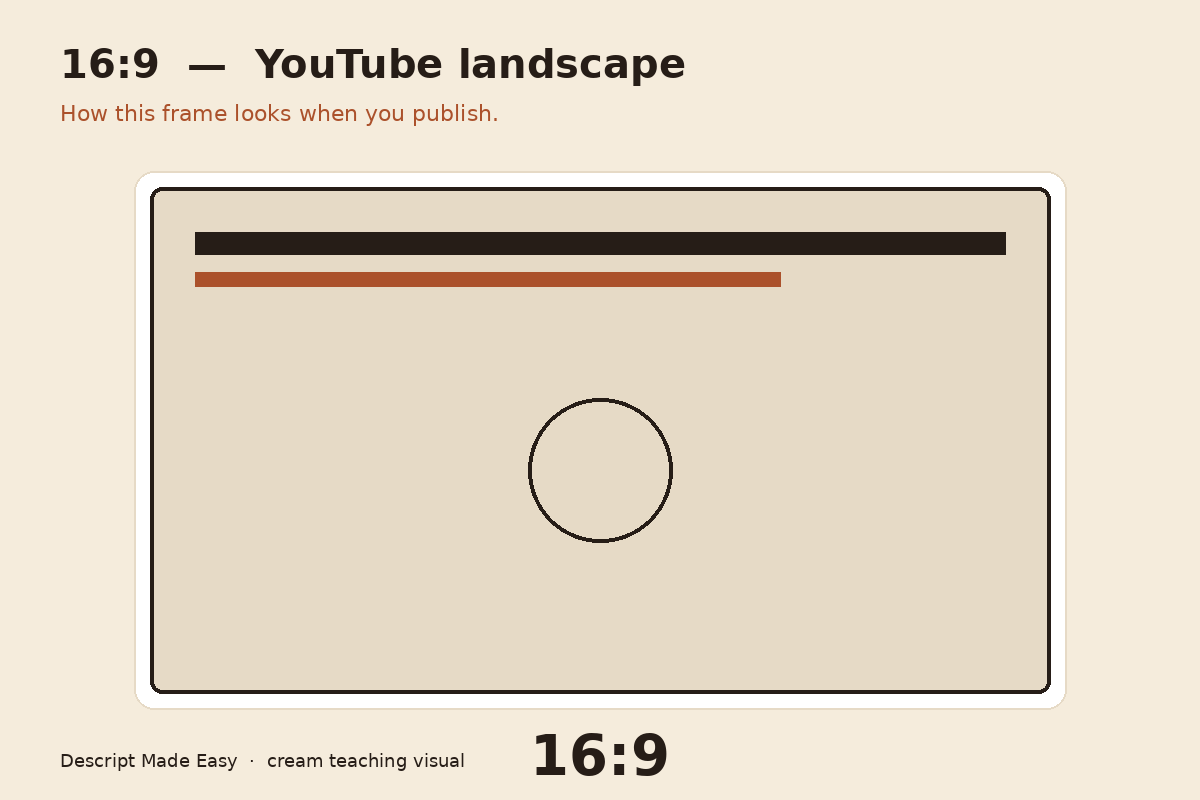
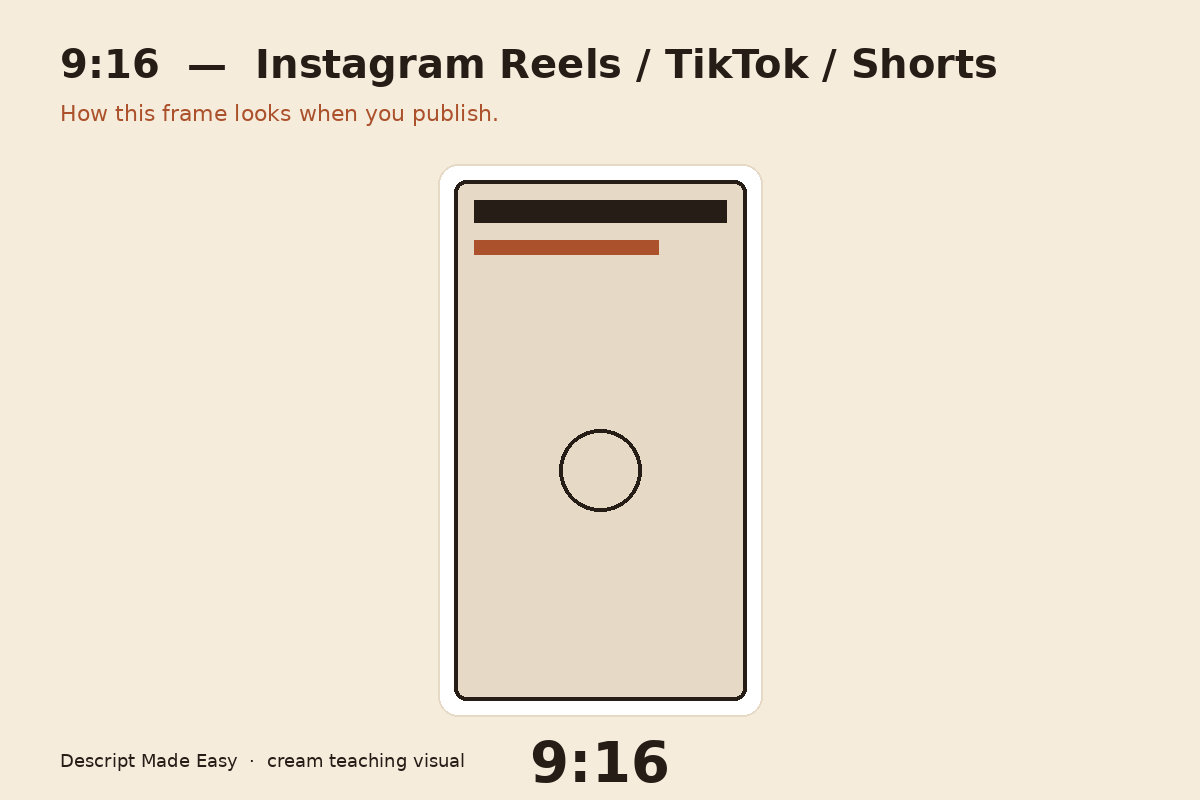
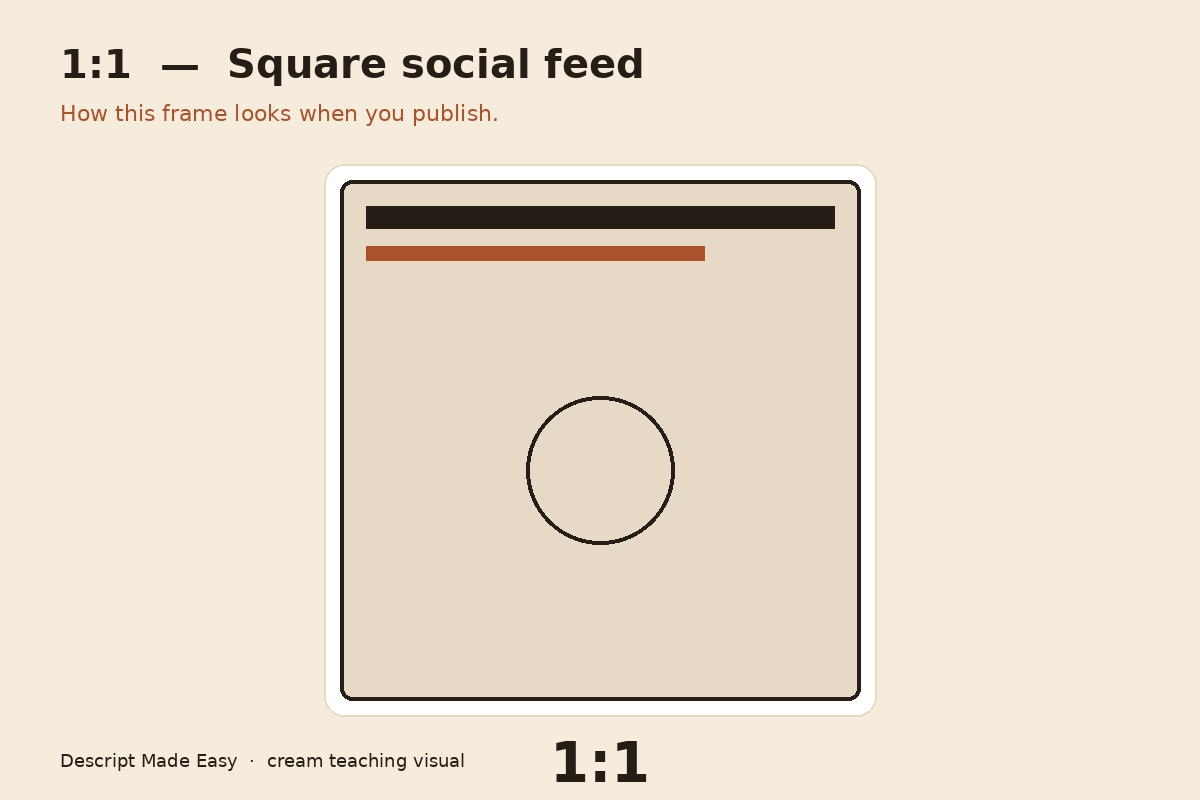
If my vertical video is longer than 3 minutes, does it still go to the Shorts algorithm?
Platform rules change, and Shorts length limits are set by YouTube—not by Descript. Descript’s job is to let you set a 9:16 composition so the frame matches vertical delivery. For current Shorts length and feed rules, check YouTube’s own help; then export from Descript at 9:16 so the file is already the right shape.
Watch: Setting Project Aspect Ratio in Descript
Prefer to see it on screen? Watch Setting Project Aspect Ratio (Dimensions) on the Descript Mastery YouTube channel.

How do I set aspect ratio in Descript?
Official Descript help (Aspect ratio and video settings) matches what beginners need after the lesson:
- Open your composition in the Descript editor.
- Click the box icon in the top-left of the Scene Editor (composition / video settings).
- Choose Landscape, Square, or Portrait from the dropdown—or choose Other for custom settings.
- Confirm the ratio: square is 1:1, vertical is 9:16, horizontal is 16:9. Custom ratios are available when you need them.
When you add media to a new composition, Descript often adjusts toward the nearest standard option (or matches a Recording). You can still change the ratio anytime with the steps above. See Aspect ratio and video settings for the latest UI wording.
How to pick and set aspect ratio (quick path)
- Decide the destination first (YouTube landscape vs Shorts/Reels vs square feed).
- Map that destination to 16:9, 9:16, or 1:1 (or custom).
- In Descript, open the Scene Editor box icon and set Landscape, Portrait, Square, or Other.
- Record or import for that shape so you are not fighting the frame later.
Free download: Aspect Ratio checklist
Want a one-page printable with real checkboxes? Enter your email below to get the Aspect Ratio checklist. Feel free to print it and check things off as you go.
After you submit, you’ll land on a soft thank-you page with the PDF download link (we’ll also email it).
FAQ
What aspect ratios does Descript support?
Landscape (16:9), portrait (9:16), square (1:1), and custom ratios—enough for nearly every common publishing case.
Which ratio should I use for YouTube vs Shorts?
Regular YouTube videos are typically 16:9. YouTube Shorts (and TikTok / Reels / Stories) are typically 9:16.
When should I use 1:1?
When you want a square frame for feed posts on Instagram, Facebook, X, or LinkedIn.
Where do I change the aspect ratio in the Descript UI?
Top-left of the Scene Editor: open the box / composition settings control, then pick Landscape, Square, Portrait, or Other.
Where should I go next as a beginner?
Use the Descript for Beginners hub, skim resolution and frame-rate basics, then keep practicing inside a free class or Descript Made Easy.
Keep learning
- Descript for Beginners
- Aspect Ratio Explained: 1:1, 16:9, 9:16, and More
- Pick Your Aspect Ratio Before You Hit Record
- Video Resolution Explained
- Frame Rate Explained
- Creating Your First Video Project in Descript
- Descript Help: Aspect ratio and video settings
- Free getting-started class
- Descript Made Easy
Want live help while you learn? Join the free 1-hour class: https://www.descriptmastery.com/getting-started-with-descript
Or go straight to Descript Made Easy: https://www.descriptmastery.com/
Check out the Descript Mastery School - my step-by-step blueprint for creating beautiful videos in 25% of the time.
Get 🔥 Descript tips!
Receive Descript tips, free resources, and easy-to-follow tutorials by email.
We hate SPAM. We will never sell your information, for any reason.