Deleting, Ignoring, Removing Words in Descript: Beginner Guide
Oct 04, 2026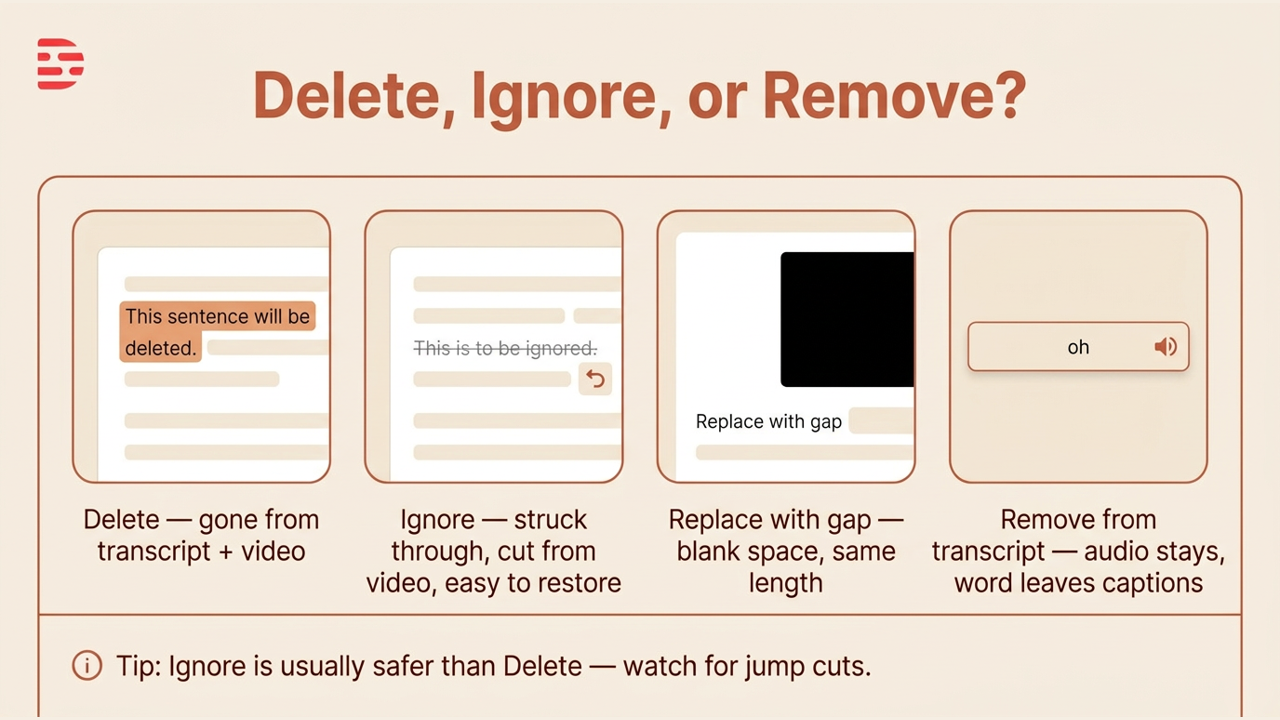
Direct answer: In Descript, highlighting words in the transcript also selects that piece of the video, so whatever you do next affects both. Delete removes the words and the matching video. Ignore (the strikethrough S) also cuts that piece from the video but keeps the struck-through text visible so you can restore it later. The arrow next to Ignore adds Replace with gap (a blank space of the same length) and Remove from transcript (the word leaves the transcript and captions, but the audio and video stay). For most cuts, Ignore is the safer habit.
This article was written with AI, based on a real Descript Made Easy lesson by the humans behind Descript Made Easy.
What’s the difference between deleting and ignoring words in Descript?
The Deleting, Ignoring, Removing Words lesson (Core Skills / Transcribing and Transcript Editing) walks through all four options on the same sentence. Deleting is the fastest way to tighten spoken-word content, but it’s blind: you’re cutting by the words, not by what the picture is doing. On a shot of a hand on a screen that’s fine. On your face, a sudden change can look harsh and jumpy, which is called a jump cut. Ignoring makes the same cut in the video while leaving the text in place, struck through and grayed out, so you can keep track of what you removed and bring it back with one click.
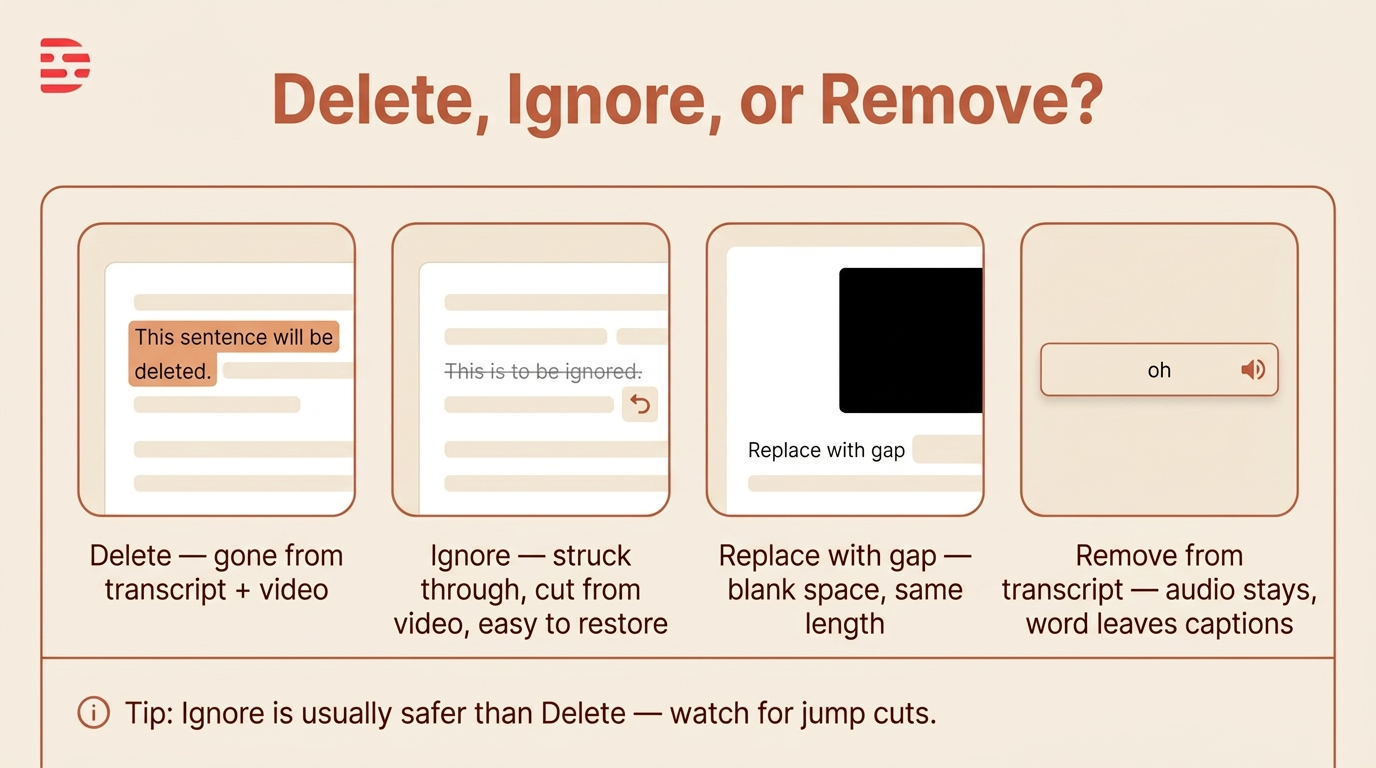
Four ways to take words out: Delete, Ignore, Replace with gap, and Remove from transcript. Ignore is usually the safer choice.
How do I delete, ignore, or remove words in the Descript transcript?
Practice on a short clip at web.descript.com:
- Highlight the words you want gone in the transcript. The matching part of the video is selected along with them.
- Click the strikethrough S to Ignore them (the lesson’s recommended habit). The text stays on the transcript, struck through and grayed out, and that piece is removed from the video.
- Play through the cut and watch the picture, not just the words, for a harsh or jumpy jump cut.
- Restore it if the cut looks bad by hovering over the struck-through text and clicking the little back (restore) button.
- Open the arrow next to Ignore for the other options: Delete, Replace with gap, or Remove from transcript.
- Delete for good once you’re sure it’s a great cut, using the button on the ignored text (or highlight and press Delete).
Descript’s help center lists the keyboard shortcuts: Delete (Mac) or Backspace (Windows) deletes, and Command+Delete (Mac) or Control+Backspace (Windows) ignores. Official write-up: Deleting vs ignoring script text on help.descript.com.
When should I use Replace with gap or Remove from transcript?
Replace with gap swaps the selection for a blank space that lasts exactly as long as the words did, so you’ll see a black screen during playback. The lesson calls it a rarely needed option, but good to know about.
Remove from transcript is the one the lesson uses a lot. It takes a word out of the transcript and your captions without cutting anything from the audio or video. That’s handy for little sounds like “oh” or a stray word you want people to hear but don’t want spelled out in captions. Because nothing is cut from the media, it won’t chop up your video.
Can my editor or team see what I removed?
Yes, if you ignore instead of delete. When you export the transcript, you can choose to show ignored text, so an editor or teammate can see exactly what came out. Deleted text won’t appear in an exported text file. For the basics of reading and fixing your transcript first, see Intro to the Transcript and Correcting the Transcript.
Watch: Removing words from the transcript and video
Prefer video? Watch Removing Words from the Transcript & Video on the Descript Made Easy with Ross channel (plain link, since Kajabi may strip embeds). For the Ignore side specifically, see Ignoring in Descript: Different than Delete?
Get the printable Delete, Ignore & Remove checklist
Want a one-page checklist (highlight, Ignore first, play the cut, Remove from transcript for caption-only words, Delete only when sure)? Enter your email below and click Get the checklist. Feel free to print.
FAQ
Does deleting words in the transcript also cut the video?
Yes. Highlighting words selects the matching part of the video, so deleting the text removes that piece of the video too.
What does Ignore do in Descript?
Ignore strikes through the selected text and removes that part from the video, but keeps the text visible on the transcript so you can track what you removed and restore it later.
How do I bring back words I ignored?
Hover over the struck-through, grayed-out text and click the little back (restore) button. The words and that piece of video come back.
What’s the difference between Remove from transcript and Delete?
Delete cuts the words and the matching audio and video. Remove from transcript only takes the word out of the transcript and captions; the audio and video stay, so nothing gets chopped.
Should I use Ignore or Delete?
The lesson recommends Ignore as the better general practice: it makes the same cut but stays reversible and visible. Delete for good once you’ve played the cut and you’re sure it works.
Keep learning
- Descript for Beginners
- Intro to the Transcript in Descript: Beginner Guide
- Correcting the Transcript in Descript: Beginner Guide
- Descript Help: Deleting vs ignoring script text
- Free getting-started class
- Descript Made Easy
Want live help while you learn? Join the free 1-hour class: https://www.descriptmastery.com/getting-started-with-descript
Or go straight to Descript Made Easy: https://www.descriptmastery.com/
Check out the Descript Mastery School - my step-by-step blueprint for creating beautiful videos in 25% of the time.
Get 🔥 Descript tips!
Receive Descript tips, free resources, and easy-to-follow tutorials by email.
We hate SPAM. We will never sell your information, for any reason.