Importing Media in Descript: Beginner Guide
Sep 23, 2026
Direct answer: To import media into Descript, open a project and bring files in one of three beginner-friendly ways: drag a file onto the project, use the plus / Upload control in the Project panel, or drop files into an empty composition. The file lands in your Files list—then add it to the script (to transcribe) or drop it on the canvas as a layer.
This walkthrough is grounded in the Descript Made Easy lesson “Importing Media” (Core Skills / Importing & Using Media) plus official Descript help on importing and uploading from your computer. You can also record straight into Descript; this guide is about files you already have (phone footage, camera clips, images, audio).
This article was written with AI, based on a real Descript Made Easy lesson by the humans behind Descript Made Easy.
How do I import media into Descript as a beginner?
Pick the path that feels simplest. All three get the same result: your file in the project’s Files list.
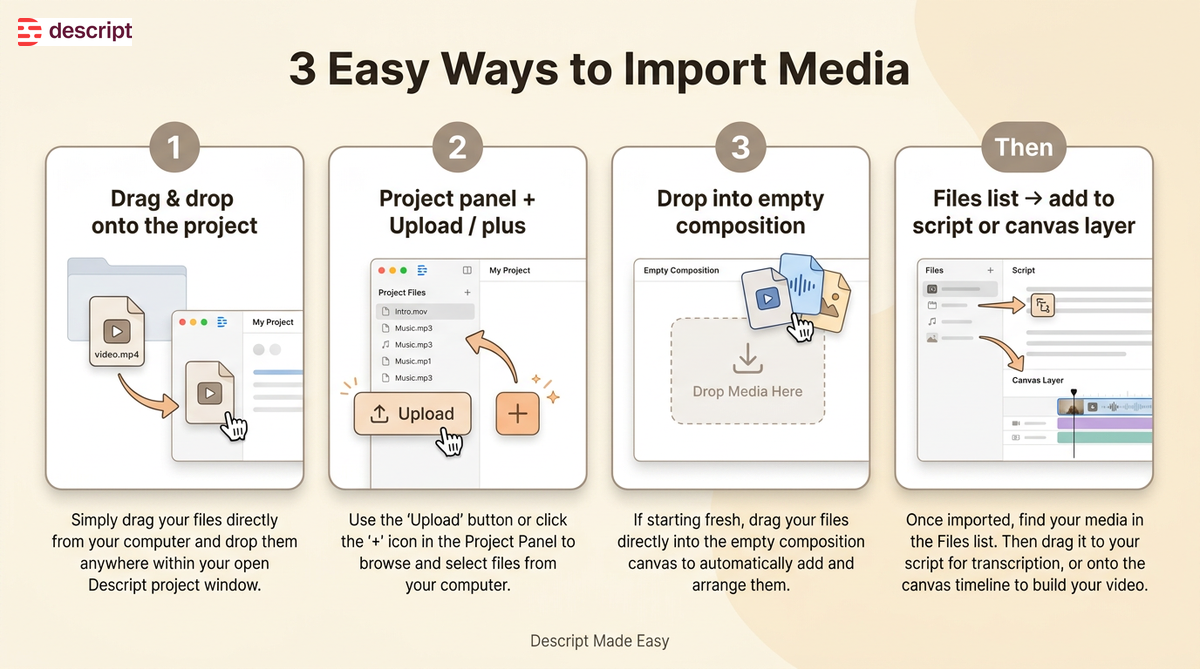
Three import paths, then use the Files list to add media to your script or canvas.
Watch: Easiest Way to Add Your Own Media to Descript
This clip from Descript Made Easy with Ross pairs well with the import steps below:

Watch on YouTube: Easiest Way to Add Your Own Media to Descript — then practice with one of your own files. (The full course lesson “Importing Media” is also inside Descript Made Easy.)
What are the steps to import a file from my computer?
- Open a Descript project (or create a new one).
- Choose one import path:
- Drag and drop a file from Finder (Mac) or File Explorer (Windows) onto the open project, or
- Open the Project panel (right sidebar) and use the Upload / plus control to browse and select files, or
- Drop files into an empty composition if you are starting fresh on a blank canvas.
- Wait for the upload to finish. Watch progress in the Activity panel if Descript shows it (official help).
- Confirm the file appears in the Files list in the Project panel.
- From Files, either add it to the script (so Descript can transcribe speech) or drop it on the canvas as a layer (visuals, B-roll, music, images).
- Play back to confirm everything imported cleanly.
Official walkthroughs: Import and upload files into Descript and Upload a file from your computer.
Where does my file go after I import it?
Imported files live in the Files section of the Project panel. From there you can add them to the script, place them as layers on the canvas/timeline, or open the file menu for more options. Uploading stores the media in the project; adding to the script is what kicks off transcription for spoken audio/video.
What file types can I import into Descript?
Beginners can stick to the formats they already shoot with: common video, image, and audio types (for example MP4/MOV, JPG/PNG, MP3/WAV—exact support is listed in Descript Help). Check Supported file types before you hunt for exotic codecs. For a plain-language walkthrough of MP3/MP4/MOV, see our related file-types post linked below.
Should I record in Descript or import files I already have?
Both work. Record when you want a fresh take inside Descript. Import when you already have phone footage, camera clips, images, or audio on your computer—that is the focus of the Importing Media lesson. Many beginners do both in the same project.
Get the printable Importing Media checklist
Want a one-page checklist you can print and tick off while you practice? Enter your email below—button copy is Get the checklist. Feel free to print it.
FAQ
How do I import media into Descript?
Open a project, then drag a file onto the project, use Project panel Upload/plus, or drop into an empty composition. The file appears in Files.
Where do imported files show up?
In the Files list in the Project panel (right sidebar).
How do I transcribe after import?
Add the file to the script so Descript can transcribe the speech. Dropping it only as a canvas layer does not replace that step for text-based editing.
What file types does Descript accept?
Common video, image, and audio formats. See Descript Help: Supported file types for the current list.
Can I import from Zoom or Google Drive?
Yes—Descript also supports those flows (and Media Library reuse). Start with computer upload first; then explore the import overview for other sources.
Do I have to use only one import method?
No. Pick whichever feels simplest for the file in front of you.
Where should I go next as a beginner?
Use the Descript for Beginners hub, review file types and aspect ratio, then keep practicing import + light edits.
Keep learning
- Descript for Beginners
- File Types Explained: MP3, MP4, MOV, and What Descript Accepts
- How to Import and Transcribe Video in Descript (2026 Tutorial)
- Setting Aspect Ratio in Descript: Beginner Guide
- Creating Your First Video Project in Descript
- The Editing Cycle in Descript: Beginner Guide
- Descript Help: Import and upload files
- Descript Help: Upload a file from your computer
- Free getting-started class
- Descript Made Easy
Want live help while you learn? Join the free 1-hour class: https://www.descriptmastery.com/getting-started-with-descript
Or go straight to Descript Made Easy: https://www.descriptmastery.com/
Check out the Descript Mastery School - my step-by-step blueprint for creating beautiful videos in 25% of the time.
Get 🔥 Descript tips!
Receive Descript tips, free resources, and easy-to-follow tutorials by email.
We hate SPAM. We will never sell your information, for any reason.