How to Color-Code Speakers or Sections in a Descript Transcript
Oct 06, 2026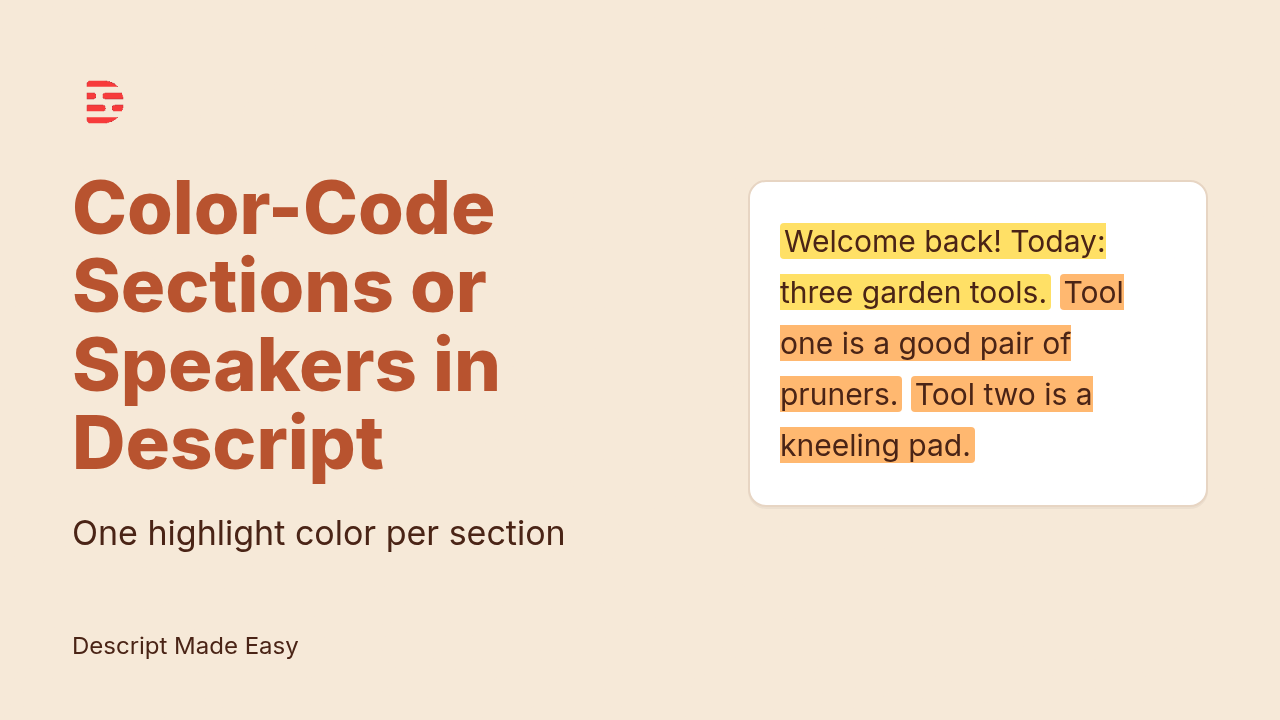
Direct answer: To color-code speakers or sections in your Descript transcript, use highlight colors. Pick one system first, either one color per section (for example, yellow for your intro and orange for your main tips) or one color per speaker. Select the words, click the little colorful dot in the menu that pops up to highlight them in yellow (the default), and for the next section or speaker click the little down arrow next to the dot and choose another color. Keep it to two or three colors, and clear the highlights before you export if you don’t want them to stay.
This article was written with AI, based on a real Descript Made Easy lesson by the humans behind Descript Made Easy.
What does “coloring” mean in the Descript transcript?
In the Styling Your Transcript lesson (Core Skills / Transcribing and Transcript Editing), the coloring Ross shows is the highlight. Right next to bold and italics in the pop-up menu is a little colorful dot. Click it and your selection is highlighted in yellow, the default. Click the little down arrow next to it and you get different colors, like red and orange. At the very bottom of that list you can clear the highlights. Ross calls this styling “really just aesthetic,” which makes it a handy way to see the shape of a long recording at a glance without changing your edit.
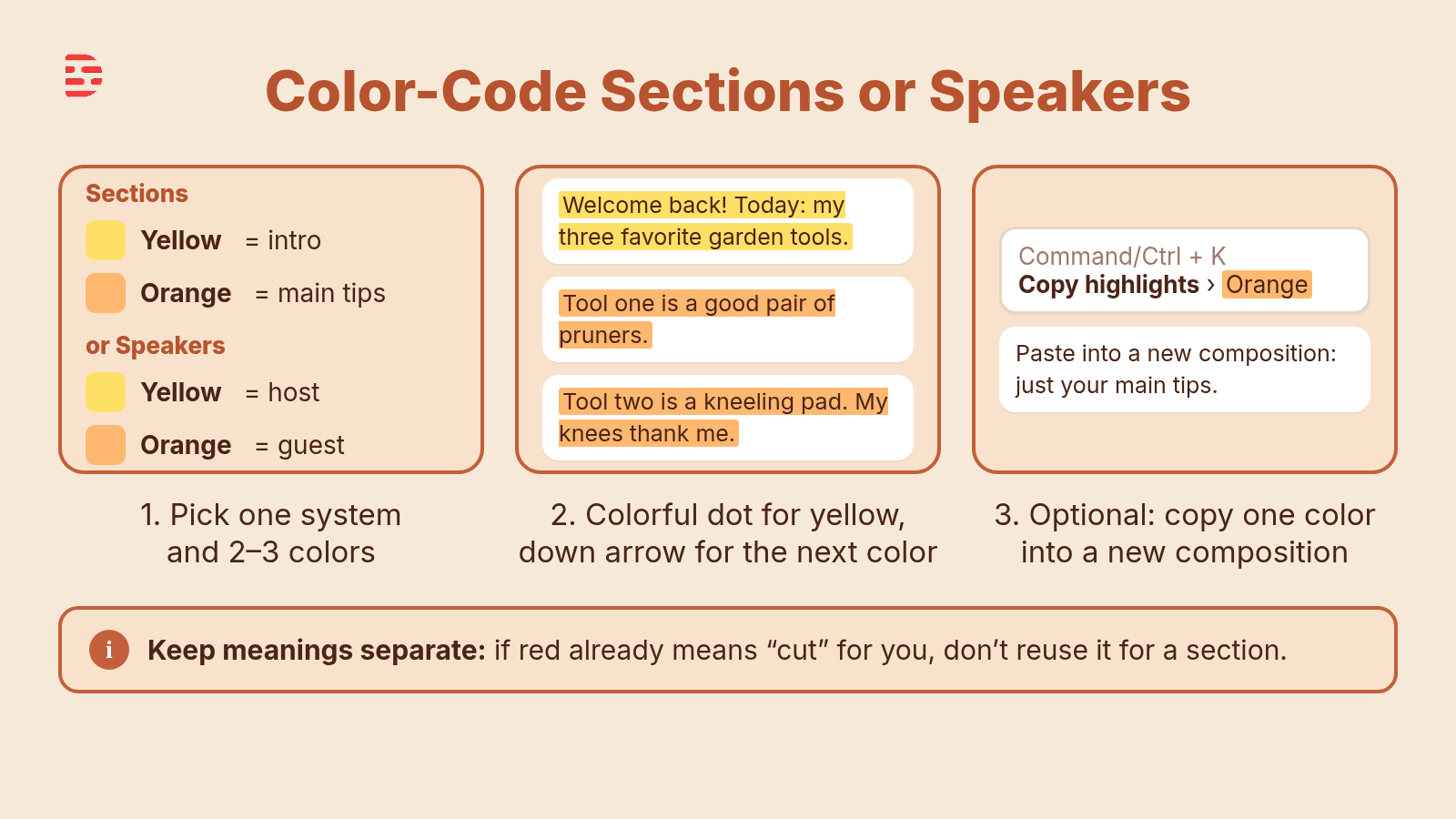
One color per section (or per speaker). The colors map your recording; they don’t change it.
How do I color-code sections or speakers in a Descript transcript?
Try it on your next longer recording:
- Choose one system: sections or speakers. For a solo video, color by section or topic. For an interview, you can give each person their own color.
- Pick two or three colors and write your key down. For example, yellow means intro and orange means main tips. If you already use red to mean “cut,” don’t reuse it here.
- Select the words of your first section. The menu pops up over your selection, the same one you use for bold and italics.
- Click the little colorful dot. Your selection is highlighted in yellow, the default, as soon as you click.
- Select the next section and click the little down arrow next to the dot. Choose your second color, like orange, so the two sections look different.
- Scroll through and check your map. Each section (or each speaker) should now read as one block of color.
- Clear the highlights when you no longer need them. Select the words, open the same down arrow, and choose the clear option at the very bottom.
Can I pull one color-coded section into its own composition?
Yes. Descript’s help center explains Copy highlights: press Command+K (Mac) or Ctrl+K (Windows) to open the action bar, type “Copy highlights,” and choose either all highlights or one specific color. Then open or create another composition, right-click in the script where you want them, and choose Paste. That means if every main tip is orange, you can copy just the orange parts into a new composition. See Highlight text and copy highlights.
Should I use the same colors for sections and for keepers and cuts?
No, keep the meanings separate. If you already mark keepers in yellow and cuts in red (the system in Highlight Keepers and Cuts in the Descript Transcript), a red section would get confusing fast. Either do your keep-or-cut pass first and clear it, or choose different colors for your sections. And remember that a highlight never cuts anything on its own; when you’re ready to remove something, use Deleting, Ignoring, Removing Words in Descript.
Will my viewers see the colors?
Ross notes that styling impacts how things look in the transcript, can affect how your captions look, and can show up in an exported transcript if you choose to keep formatting. So before you export, play through a captioned section to check, and clear any highlights you don’t want to keep. For bold and italics, which are meant for emphasis your viewers may see, read How to Style Your Descript Transcript: Bold, Italics, and Highlight Colors. If you’re still getting your bearings in the editor, the Descript editor map shows where the transcript sits.
Watch: the transcript lesson and a related video
The full Styling Your Transcript lesson video (about a minute and a half) is inside Descript Made Easy. The Descript Made Easy with Ross channel doesn’t have a video just on color-coding yet, so for a tour of how the transcript-based editor works, watch Descript: The Transcript-Based Editor.
Get the printable Color-Code Your Transcript checklist
Want a one-page checklist (choose sections or speakers, pick two or three colors, highlight with the colorful dot and down arrow, optionally copy one color into a new composition, then clear before export)? Enter your email below and click Get the checklist. Feel free to print.
FAQ
How do I color-code a Descript transcript?
Select the words, click the little colorful dot in the pop-up menu to highlight them in yellow, and use the little down arrow next to the dot to choose a different color for the next section or speaker.
What colors can I use for Descript highlights?
Yellow is the default. The little down arrow next to the colorful dot shows more colors, such as red and orange.
How many colors should I use?
Two or three is plenty. Write down what each color means so you stay consistent through the whole recording.
Does color-coding change my video?
No. Highlighting changes how the words look in the transcript, not what plays. Styling can affect how captions look and can carry into an exported transcript if you keep formatting, so clear highlights you don’t want before you export.
Can I copy just one color into a new composition?
Yes. Descript’s help center describes Copy highlights: open the action bar with Command+K or Ctrl+K, choose Copy highlights for one color or all highlights, then paste into another composition.
Keep learning
- Descript for Beginners
- How to Style Your Descript Transcript: Bold, Italics, and Highlight Colors
- Highlight Keepers and Cuts in the Descript Transcript
- Deleting, Ignoring, Removing Words in Descript: Beginner Guide
- Descript Help: Highlight text and copy highlights
- Free getting-started class
- Descript Made Easy
Want live help while you learn? Join the free 1-hour class: https://www.descriptmastery.com/getting-started-with-descript
Or go straight to Descript Made Easy: https://www.descriptmastery.com/
Check out the Descript Mastery School - my step-by-step blueprint for creating beautiful videos in 25% of the time.
Get 🔥 Descript tips!
Receive Descript tips, free resources, and easy-to-follow tutorials by email.
We hate SPAM. We will never sell your information, for any reason.