Descript Settings Worth Changing on Day One
Sep 23, 2026
Direct answer: On day one in Descript, open Settings from your drive name (or inside a project) and change only a shortlist: Default project (Video if you mostly make videos), Appearance (System is fine), transcription language + leave Always ask before transcribing off, speaker detection for your cast, glossary learning on, Automatic volume levels and Use room tone on gap clips on, Always show usage information on, and a Drive publish privacy that matches how you share.
This is the day-one shortlist from the Descript Made Easy lesson “Setting Up Descript - Customize Your Setup.” The right choices still depend on how you work—treat this as what to set first, not every switch in the panel. For the fuller tour of General, Account, and Drive settings, see our companion guide How to Customize Your Descript Setup (Beginner Guide). Official reference: Descript Help: App settings.
This article was written with AI, based on a real Descript Made Easy lesson by the humans behind Descript Made Easy.
Which Descript settings should I change on day one?
Skip foot pedals, MCP, API tokens, and deep AI-model picking until you need them. Start with the defaults that shape every new project and every transcription.
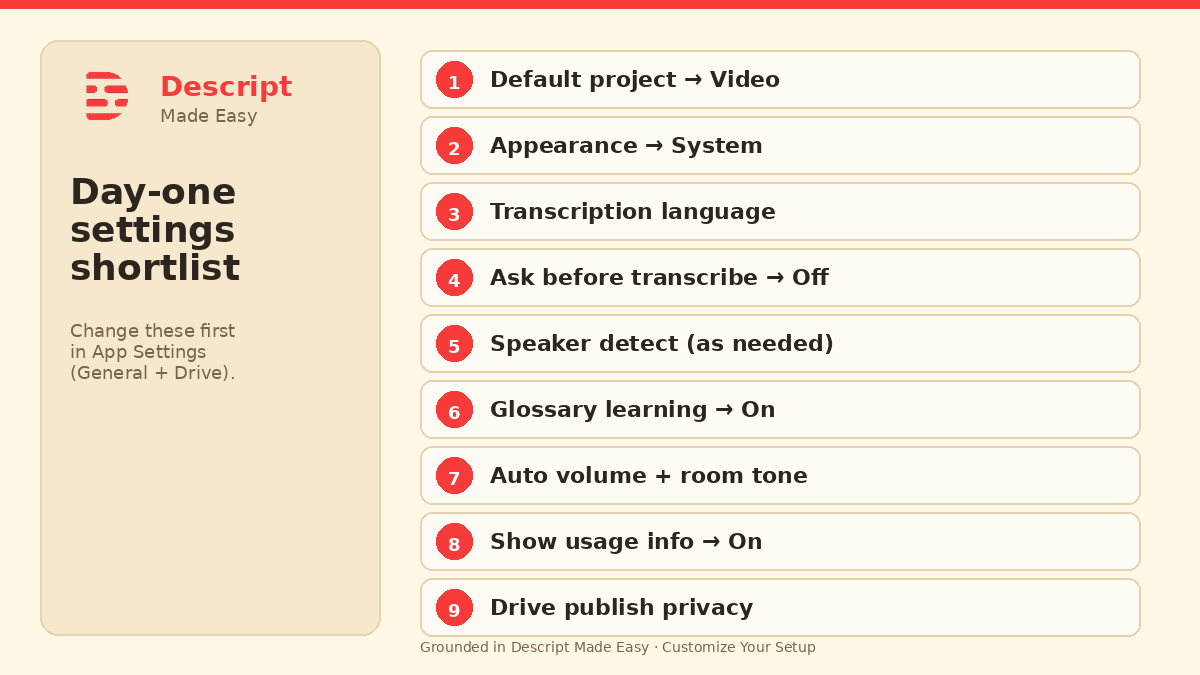
Nine settings worth touching first—then explore the rest when you are ready.
Watch: Important Settings For Using Descript’s AI Tools
This clip from Descript Made Easy with Ross is a settings-focused companion (AI-tool settings). Pair it with the App Settings shortlist below from the Customize Your Setup lesson:
Watch on YouTube: Important Settings For Using Descript’s AI Tools — then open App Settings in your own drive and set the day-one shortlist. (The full lesson “Customize Your Setup” is inside Descript Made Easy.)
How do I open Descript Settings?
From the drive view, click your drive name (top left), then choose Settings. You can also open Settings from inside a project. You land on the General tab first. Keyboard shortcut on desktop: Cmd/Ctrl + , (official help).
What are the day-one settings steps?
- Open Settings from your drive name (or inside a project) and stay on the General tab.
- Default project — Choose Video if you mostly make videos (or Audio if you are audio-first). When you click New project you can still pick Video, Audio, or a Rooms recording.
- Appearance — Set System so Descript follows your computer’s day/night mode (or pick Light/Dark). Leave Theme on Default unless you prefer Classic.
- Default transcription language — Pick the language you record in (for example English / US English) or leave Auto.
- Always ask before transcribing — Leave this off so files transcribe automatically. Transcription itself no longer costs extra the way older plans did.
- Automatically detect speakers — Leave on when speakers change often; consider off if it is almost always the same one or two people.
- Automatically add frequent corrections to transcription glossary — Leave on so names and business terms stick after you correct them a few times. Glossary update notifications are optional (handy on shared drives).
- Automatic volume levels — Leave on (quiet up, loud down, toward about −16 dB). Leave Show volume in decibels off so you work in percentages. Leave Use room tone on gap clips on so silence gaps keep ambient room sound.
- Always show usage information — Leave on so AI credits and media minutes stay visible in the app. In Labs, keep the current timeline and Underlord enabled unless you have a reason to roll back.
- Drive → Preferences → Default publish privacy — Choose Public, Anyone with the link, or Project access required to match how you share drafts.
Optional on day one (skip until needed): USB foot pedal, desktop screen-recorder shortcut, smart transitions toggle, wordless-media dots, software video decoding, deep AI model defaults, Connected apps, Descript MCP, and API tokens.
What can I safely ignore on day one?
You do not need a perfect settings panel before your first project. Foot pedals, MCP, API tokens, and model-by-model AI defaults can wait. If rendering ever misbehaves, that is when to talk through software video decoding—not on day one.
Get the printable Day-One Settings checklist
Want a one-page checklist you can print and tick off while you set App Settings? Enter your email below—button copy is Get the checklist. Feel free to print it.
FAQ
Which Descript settings matter most on day one?
Default project type, appearance, transcription language with “always ask” off, speaker detection for your cast, glossary learning on, automatic volume + room tone on gap clips, usage info visible, and Drive publish privacy.
How do I open Descript Settings?
From the drive view, click your drive name → Settings (or open Settings inside a project). Desktop shortcut: Cmd/Ctrl + ,.
Should I leave “Always ask before transcribing” on?
For most beginners, leave it off so transcription runs automatically. Transcribing itself no longer costs extra the way older plans did.
Should beginners use Light, Dark, or System appearance?
Any works. System follows your computer’s day/night mode so you do not manage a separate Descript theme.
Do I need to connect Zoom, YouTube, or MCP on day one?
No. Connect apps when you need them. Skip MCP and API tokens until a later AI lesson.
Where is the fuller customize-setup walkthrough?
See How to Customize Your Descript Setup (Beginner Guide) on the same lesson, plus official App settings help.
Where should I go next as a beginner?
Use the Descript for Beginners hub, then keep practicing with a first project and light edits.
Keep learning
- Descript for Beginners
- How to Customize Your Descript Setup (Beginner Guide)
- Get Started in Descript from Absolute Zero
- Your First 30 Minutes in Descript
- Creating Your First Video Project in Descript
- Descript Resources: Beginner Guide
- Descript Help: App settings
- Free getting-started class
- Descript Made Easy
Want live help while you learn? Join the free 1-hour class: https://www.descriptmastery.com/getting-started-with-descript
Or go straight to Descript Made Easy: https://www.descriptmastery.com/
Check out the Descript Mastery School - my step-by-step blueprint for creating beautiful videos in 25% of the time.
Get 🔥 Descript tips!
Receive Descript tips, free resources, and easy-to-follow tutorials by email.
We hate SPAM. We will never sell your information, for any reason.