Don't Fear Mistakes: Version History and Undo in Descript (Beginner Guide)
Sep 22, 2026
Direct answer: In Descript, mistakes are reversible. Use the Undo arrow (or Cmd/Ctrl+Z) for your last action in the same session, drag the bracket to reveal deleted media (Descript is nondestructive), or open ☰ → File → Version History to preview a snapshot and Restore an earlier project state.
This beginner guide is grounded in the Descript Made Easy lesson “Don’t Fear Mistakes! - Version History and Undo” (Core Skills / Create Your First Project) plus official Descript help on version history and shortcuts.
This article was written with AI, based on a real Descript Made Easy lesson by the humans behind Descript Made Easy.
Why shouldn’t beginners fear mistakes in Descript?
Nothing you do in Descript is permanent. Whatever you break, you can undo or return to how the project looked before. That is the whole point of this lesson: practice freely, learn by messing up, then reverse the damage. Descript is a nondestructive editor—deleting words or cutting media does not erase the underlying source file; it just covers that part until you reveal it again.
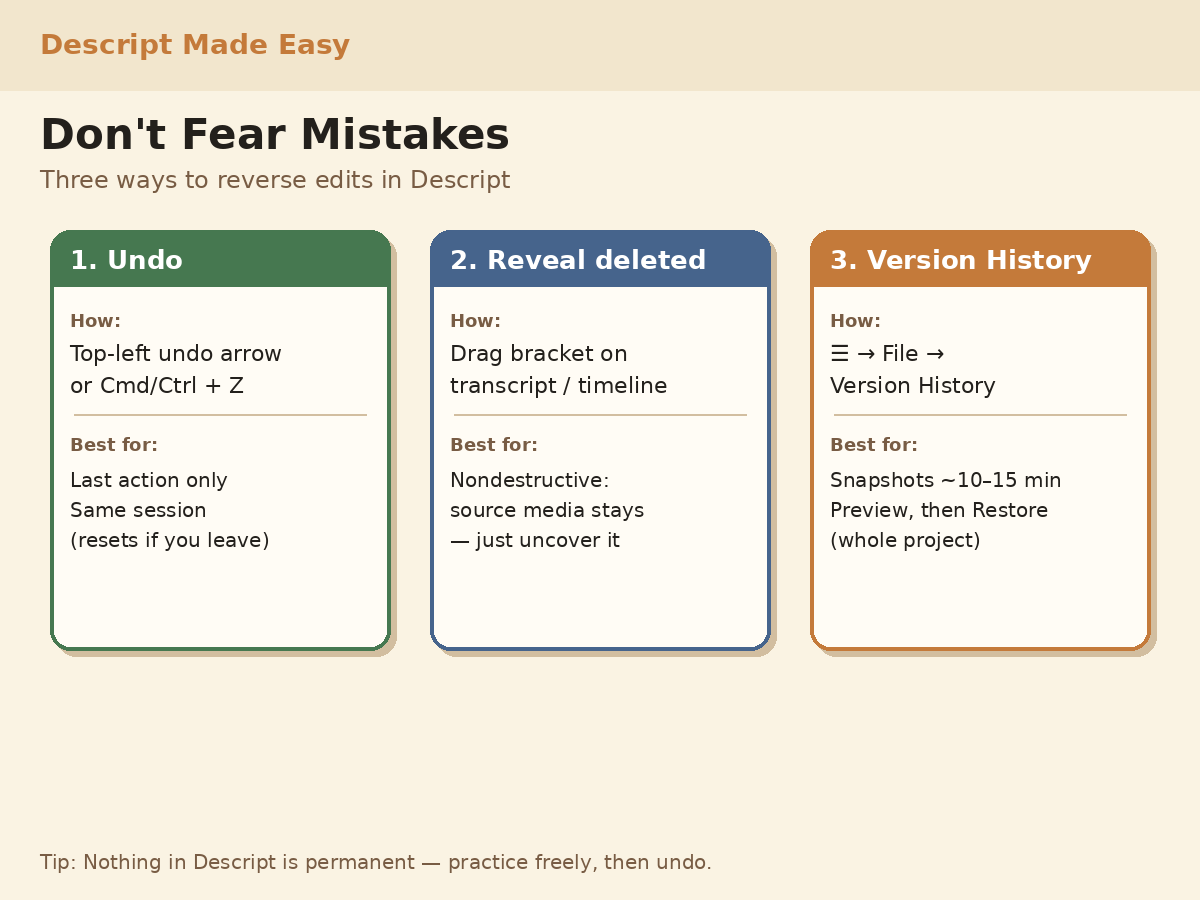
Three safety nets—Undo for the last action, reveal deleted media with the bracket, and Version History snapshots for bigger rollbacks.
Watch: Restore Deleted Text or Old Versions
This walkthrough from Descript Made Easy with Ross pairs with the course lesson on undo and version history:

Watch on YouTube: Restore Deleted Text or Old Versions — then practice the steps below. (The full lesson video is also inside Descript Made Easy.)
How do I undo the last edit in Descript?
- Look top-left for the little undo arrow and click it—or use Cmd+Z (Mac) / Ctrl+Z (Windows), or Edit → Undo.
- Keep pressing Undo for earlier actions in the same session. Undo is unlimited within that session.
- Know the limit: if you refresh the page or leave Descript and come back, the Undo stack starts over. That is when Version History (and revealing deleted media) matter more.
How do I restore deleted text or media without Version History?
Because Descript is nondestructive, a delete often hides part of the source instead of destroying it:
- Delete a word or range on purpose so you can practice.
- Grab the bracket (the edge handle you use to trim or extend) on the transcript or timeline.
- Drag to reveal the covered portion—the deleted media reappears from the underlying source.
That path is perfect for “I just cut too much” without rolling the whole project back.
How do I use Version History in Descript?
Official Descript help matches the lesson path:
- Open your project.
- Click the hamburger menu (☰) in the top-left.
- Choose File → Version History. The panel opens on the right with a chronological log.
- Descript saves snapshots roughly every 10–15 minutes (not every single keystroke).
- Click View next to a revision to preview how the project looked then.
- If that is where you want to work, click Restore, read the confirmation warning, then confirm.
Important: restoring a version affects all compositions and files in the project—not only the composition you are looking at. See Descript Help: Version history.
What if I messed up my project—can I go back?
Yes. That is the call-bank question this lesson answers. For a tiny slip, Undo (or reveal with the bracket). For “the last two days went sideways,” open Version History, View an earlier snapshot, and Restore only if you accept rolling the whole project back to that point in time.
Get the printable Undo & Version History checklist
Want a one-page checklist you can print and tick off while you practice? Enter your email below—button copy is Get the checklist. Feel free to print it.
FAQ
Does Undo work after I close Descript?
Undo is for the current session. If you refresh or leave and come back, use Version History or reveal deleted media instead.
Where is Version History in Descript?
Top-left hamburger menu → File → Version History. The list appears on the right.
How often does Descript save versions?
Roughly every 10–15 minutes as you work (lesson guidance)—not after every micro-edit.
Does Restore affect only one composition?
No. Restoring affects all compositions and files in the project. Confirm carefully, especially on shared projects.
Is deleted media really gone?
Usually not. Descript is nondestructive: drag the bracket to uncover what you cut from the underlying source.
Where should I go next as a beginner?
Use the Descript for Beginners hub, practice the editing cycle, then keep going with a free class or Descript Made Easy.
Keep learning
- Descript for Beginners
- Creating Your First Video Project in Descript
- How Do I Save My Descript Project?
- The Editing Cycle in Descript: Beginner Guide
- How to Navigate the Descript Editor (Beginner Guide)
- Setting Aspect Ratio in Descript: Beginner Guide
- Descript Help: Version history
- Free getting-started class
- Descript Made Easy
Want live help while you learn? Join the free 1-hour class: https://www.descriptmastery.com/getting-started-with-descript
Or go straight to Descript Made Easy: https://www.descriptmastery.com/
Check out the Descript Mastery School - my step-by-step blueprint for creating beautiful videos in 25% of the time.
Get 🔥 Descript tips!
Receive Descript tips, free resources, and easy-to-follow tutorials by email.
We hate SPAM. We will never sell your information, for any reason.