Re-transcribe & Replace Transcript in Descript: Beginner Guide
Oct 07, 2026Direct answer: Both tools live on your source media file, not in the script. Open the Project panel, click the three dots next to your video or audio file, and choose Retranscribe to have Descript run the transcription again (pick the language, then click Transcribe). If you already have a better transcript from another tool or a human transcriber, use the same menu, go down to Replace, choose Replace transcript, paste your text, and click Sync. Retranscribe overwrites your earlier corrections, and Replace transcript currently works only with English videos and transcripts.
This article was written with AI, based on a real Descript Made Easy lesson by the humans behind Descript Made Easy.
What's the difference between retranscribe and replace transcript in Descript?
In the Re-transcribe & Replace Transcript lesson (Core Skills / Transcribing and Transcript Editing), Ross explains that Descript's own transcription is good enough for most people. The two tools are for the times it isn't:
- Retranscribe is your first move when Descript got a section badly wrong. It has the AI run over the source file again and pull out a fresh transcription. It's also how you fix a file you transcribed in the wrong language.
- Replace transcript is for when you need a near-perfect transcript and already have one from somewhere else, like another transcription tool (Ross mentions Whisper) or a human transcriber. You paste it in and Descript syncs it to your video.
The transcript is tied to the source video or audio file, which is why both options are on that file in the Project panel rather than in your composition.
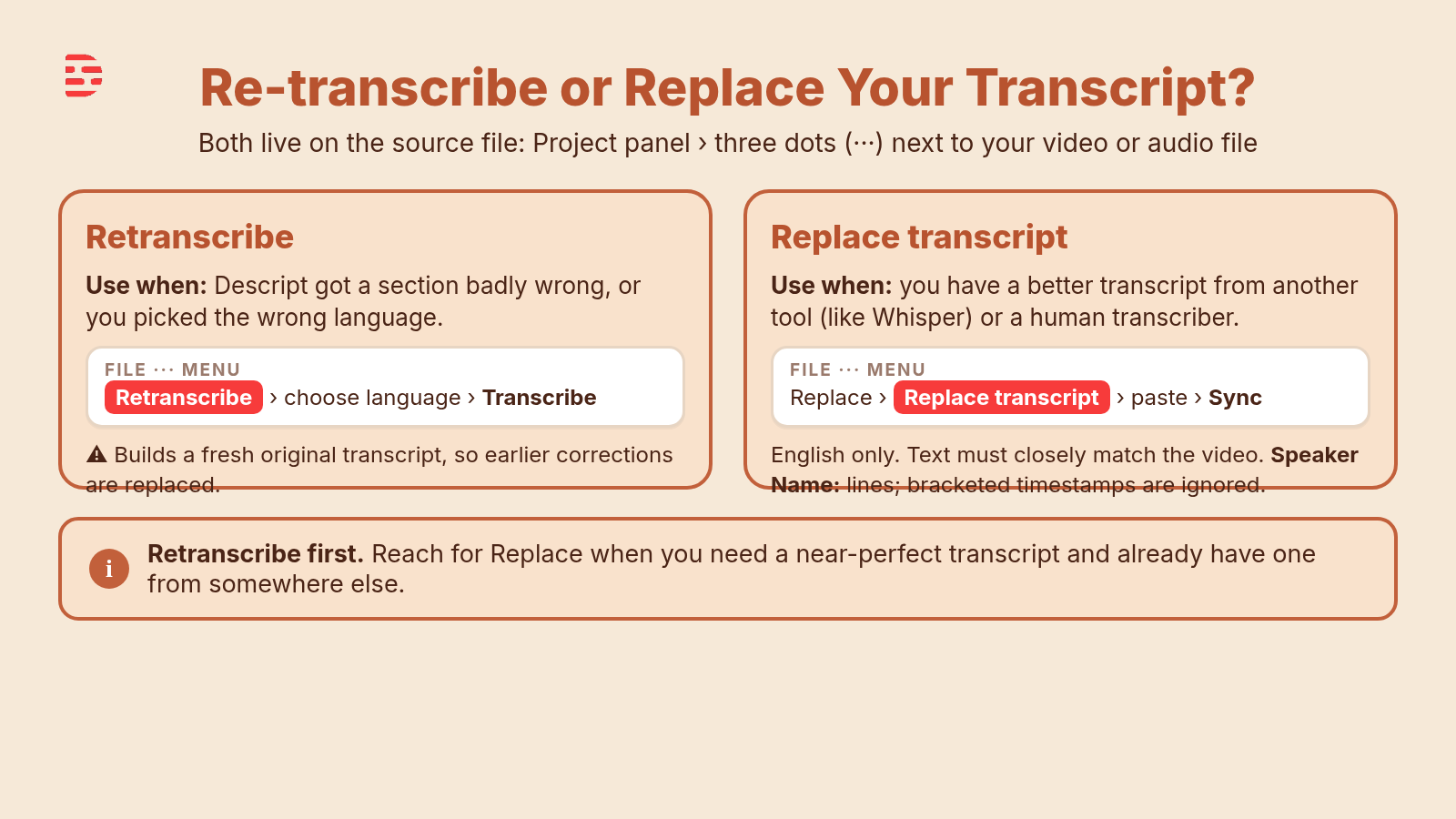
Retranscribe first. Replace when you already have a better transcript.
How do I retranscribe a file in Descript, step by step?
- Open the Project panel. Find the source video or audio file whose transcript went wrong.
- Click the three dots next to the file and choose Retranscribe. Retranscribe is in that menu; Replace is further down.
- Check the language. Descript asks you to choose the language again. If the recording is in a different language, or you picked the wrong one the first time, change it here.
- Click Transcribe and wait. In the lesson it took about a minute.
- Review the new transcript. Retranscribing puts a new original transcript over your corrected version, so any fixes you made earlier are gone. Redo the ones you still need.
When should I retranscribe instead of fixing words by hand?
Ross's rule of thumb from the lesson: retranscribe when Descript has totally messed up a section. He mentions that Descript used to occasionally "hallucinate," showing text that wasn't said at all, as if someone else's transcript was bleeding into yours. He hasn't seen that in a long time, but it's still possible, and Retranscribe is the quick fix. For a handful of misheard words, correcting them by hand is faster and keeps your other edits (see Correcting the Transcript in Descript: Beginner Guide and Fix Names and Jargon in a Descript Transcript).
How do I replace a transcript with one from another tool?
- Get your better transcript ready. It can come from another transcription tool or a human transcriber.
- Format it the way Descript expects. Start each speaker's line with the speaker's name followed by a colon (for example,
Ross: Welcome back). Timestamps in brackets are ignored. - Make sure it closely matches the video. Descript matches up words in your text with what's said in the recording so it knows how to sync them.
- Open the Project panel and click the three dots next to the file.
- Go down to the Replace section and choose Replace transcript. A box pops up asking for your transcript. The Formatting tips link opens Descript's help article.
- Paste the transcript and click Sync. Descript runs through it and swaps it in for the old transcript.
Does replace transcript work in other languages?
Not right now. In the lesson, Ross points out the note in the Replace transcript box: the feature currently works only with English transcripts and English videos. Descript's help center says the same in Use your own transcript, and adds that if a file hasn't been transcribed yet, you'll see Import transcript instead of Replace transcript. If your recording is in another language, Retranscribe with the right language selected is the tool to use. Need the transcript in a second language? See How to Translate the Transcript in Descript.
Watch: re-transcribing in Descript
The full Re-transcribe & Replace Transcript lesson video (about four minutes) is inside Descript Made Easy. On the Descript Made Easy with Ross YouTube channel, Ross also covers retranscribing in How to Re-Transcribe (Fix Wrong Language and Inaccuracies). That video is from 2024, so some menus may look different from the course lesson; follow the steps above for today's layout.

Get the printable Re-transcribe & Replace Transcript checklist
Want a one-page checklist for both tools (where to find Retranscribe, what it overwrites, how to format a replacement transcript, and where Sync is)? Enter your email below and click Get the checklist. Feel free to print.
FAQ
Where is the retranscribe option in Descript?
On the source file, not in the script. Open the Project panel, click the three dots next to your video or audio file, and choose Retranscribe.
Will retranscribing erase my transcript corrections?
Yes. In the lesson, retranscribing put a new original transcript over Ross's corrected version, so the fixes he'd made earlier were gone. Retranscribe before you spend time correcting, not after.
Can I fix a file I transcribed in the wrong language?
Yes. Choose Retranscribe, pick the correct language when Descript asks, and click Transcribe.
How do I bring in a transcript from Whisper or a human transcriber?
Click the three dots next to the file in the Project panel, go to Replace, choose Replace transcript, paste the transcript, and click Sync. Start each speaker line with the name and a colon, and make sure the text closely matches the video.
Does replace transcript work for non-English videos?
Not currently. The lesson and Descript's help center both say Replace transcript only works with English transcripts and videos.
Keep learning
- Descript for Beginners
- Correcting the Transcript in Descript: Beginner Guide
- Fix Names and Jargon in a Descript Transcript
- How to Translate the Transcript in Descript
- Descript Help: Use your own transcript
- Free getting-started class
- Descript Made Easy
Want live help while you learn? Join the free 1-hour class: https://www.descriptmastery.com/getting-started-with-descript
Or go straight to Descript Made Easy: https://www.descriptmastery.com/
Check out the Descript Mastery School - my step-by-step blueprint for creating beautiful videos in 25% of the time.
Get 🔥 Descript tips!
Receive Descript tips, free resources, and easy-to-follow tutorials by email.
We hate SPAM. We will never sell your information, for any reason.