How to Translate the Transcript in Descript
Oct 07, 2026
Direct answer: To translate the transcript in Descript, click the AI tools button, scroll down to the Repurpose section, and click Translate. Under Translate to, pick one or more languages (the lesson shows about 25 common ones), then click Submit and give it a minute. Descript adds the translation paragraph by paragraph next to your original, and a new language dropdown at the top lets you switch between the original and each translation. You can only edit the transcript in the original language; the translated versions are grayed out.
This article was written with AI, based on a real Descript Made Easy lesson by the humans behind Descript Made Easy.
What does translating the transcript do in Descript?
In the Translating the Transcript lesson (Core Skills / Transcribing and Transcript Editing), Ross shows that Descript can turn your transcript into another language in a few clicks. You choose one or several target languages, submit, and Descript returns the translation paragraph by paragraph, with each translated paragraph shown alongside your English original. Your original transcript stays where it was. Each translation becomes its own version you can switch to from a dropdown at the top of the transcript.
The same dialog also offers two optional extras: dubbing, where AI voices the translation, and lip sync, which makes your lips look like they’re saying the words in the new language. Those are covered in their own lessons later in the course, so this guide sticks to translating the text.
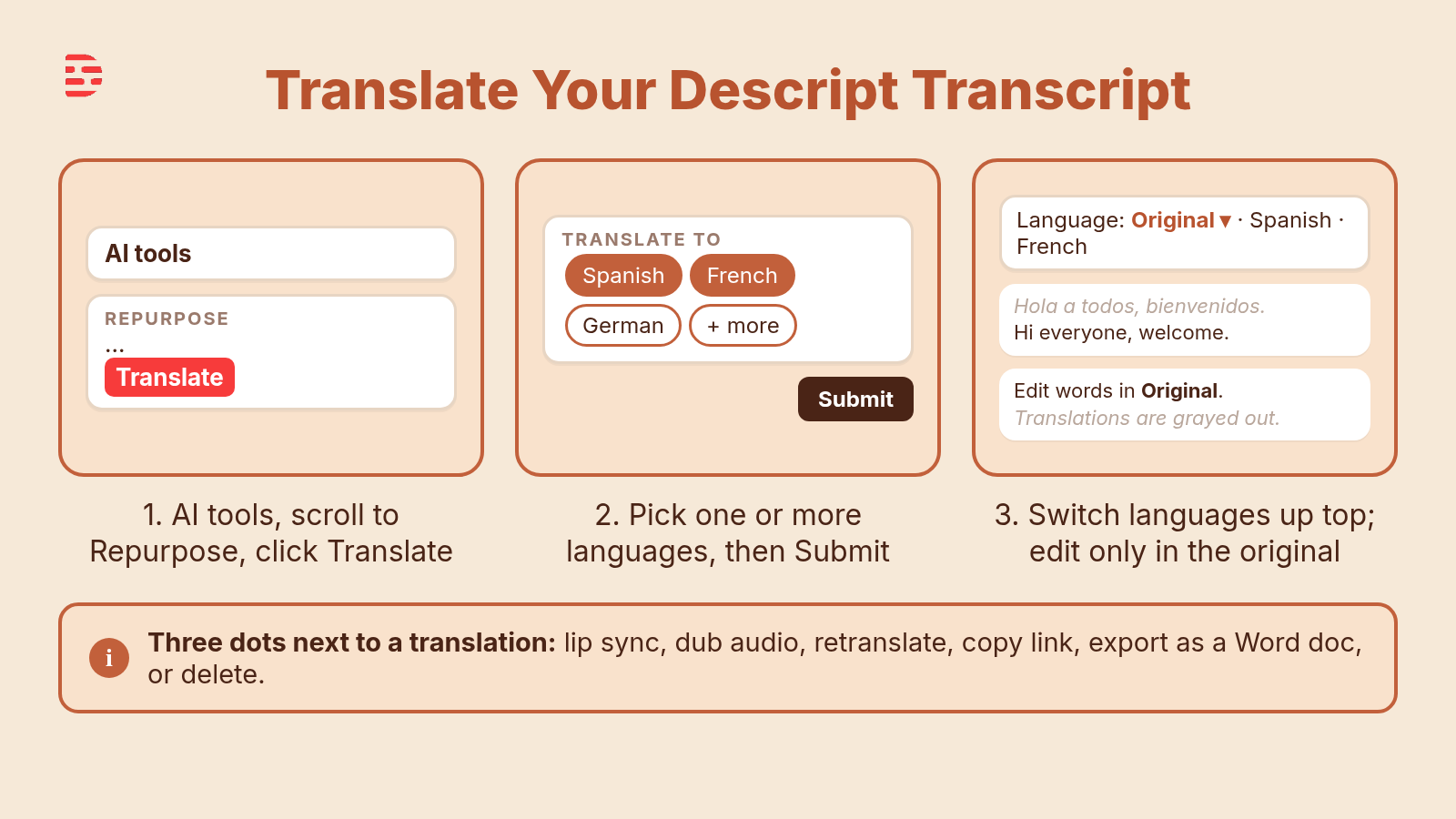
Three clicks to a translation. Edits still happen in your original transcript.
How do I translate the transcript in Descript, step by step?
- Fix your original transcript first. Translation works from your transcript text, so correct wrong words, names, and jargon in the original language before you translate.
- Click the AI tools button. It opens the list of Descript’s AI tools.
- Scroll to the Repurpose section and click Translate. Translate sits at the bottom of the Repurpose section.
- Choose your languages under Translate to. Pick one language or several at once, then click away to close the list.
- Decide whether you want dubbing or lip sync. Both are optional. If you only want translated text, leave them off.
- Click Submit and wait. Descript works on it for a minute, then shows the translation paragraph by paragraph next to your original.
- Use the language dropdown at the top to check each version. Switch between Original and each language you translated to.
What should I fix in the original language before I translate?
Anything that’s wrong in your original transcript can carry into the translation, so it pays to clean it up first. Use Correct for misheard words (see Correcting the Transcript in Descript: Beginner Guide), and double-check proper nouns and brand names with Fix Names and Jargon in a Descript Transcript. Once the original reads right, translate.
Can I edit the translated transcript?
Not the way you edit your original. In the lesson, when Ross switches the dropdown to a translation, the text is grayed out: you can’t select words or edit it like in the earlier transcript lessons. All of your transcript editing happens in the original. Switch the dropdown back to Original to keep cutting, correcting, or styling (for styling, see How to Style Your Descript Transcript).
What can I do with a translation once it’s done?
Open the language dropdown and click the three dots to the right of a translation. The lesson shows these options:
- Lip sync video: make your video look like you’re speaking that language (its own lesson).
- Dub audio: the translated voice as audio only, without the video part (its own lesson).
- Retranslate: have Descript take another try if the translation didn’t come out well.
- Copy link: copy a shareable link to that transcript.
- Export: export it as a Word document.
- Delete: remove that translation.
Below those options there’s a New translation button, so you can start over with a different set of languages. Descript’s help center has more on managing and exporting translations: Translate your captions into another language.
Watch: translating in Descript
The full Translating the Transcript lesson video (about three minutes) is inside Descript Made Easy. On the Descript Made Easy with Ross YouTube channel, Ross also walks through translation in Translate Your Project into Another Language (automatically). That video is a couple of years old, so some buttons may look different from the course lesson; follow the steps above for today’s layout.

Get the printable Translate a Descript Transcript checklist
Want a one-page checklist (fix the original first, AI tools, Repurpose, Translate, pick languages, Submit, check each version from the dropdown, and edit only in the original)? Enter your email below and click Get the checklist. Feel free to print.
FAQ
How do I translate a transcript in Descript?
Click AI tools, scroll to the Repurpose section, click Translate, choose one or more languages under Translate to, and click Submit. Descript adds the translation paragraph by paragraph next to your original.
How many languages can Descript translate a transcript into?
The lesson shows a list of about 25 common languages, and you can pick one or several at once. For the current list, check Descript’s help center.
Can I edit the translated transcript?
No. In the lesson, translations are grayed out, so you can’t select or edit words there. Do all of your transcript editing in the original.
Does translating change my original audio?
Translating the transcript gives you translated text and leaves your original transcript in place. Dubbing (an AI voice speaking the translation) and lip sync are separate, optional extras covered in their own lessons.
What if the translation doesn’t look right?
Click the three dots next to that translation and choose Retranslate to have Descript try again. Descript’s help center notes that re-translating overwrites the existing version.
Keep learning
- Descript for Beginners
- Correcting the Transcript in Descript: Beginner Guide
- Fix Names and Jargon in a Descript Transcript
- How to Style Your Descript Transcript: Bold, Italics, and Highlight Colors
- Descript Help: Translate your captions into another language
- Free getting-started class
- Descript Made Easy
Want live help while you learn? Join the free 1-hour class: https://www.descriptmastery.com/getting-started-with-descript
Or go straight to Descript Made Easy: https://www.descriptmastery.com/
Check out the Descript Mastery School - my step-by-step blueprint for creating beautiful videos in 25% of the time.
Get 🔥 Descript tips!
Receive Descript tips, free resources, and easy-to-follow tutorials by email.
We hate SPAM. We will never sell your information, for any reason.