When to Use Descript Stock Media for B-Roll
Sep 29, 2026
Direct answer: Use Descript stock media for B-roll when a moment needs a supporting visual (cover a cut, illustrate a tip, add texture)—and you do not already have fitting footage of your own. Prefer My Media when your real clips work. Search, preview, drag in, then keep the clip only if it supports the story instead of stealing attention.
This is the when / why decision guide. For the click-path to find and add stock, see Stock Media in Descript: Beginner Guide. Copyright and YouTube publishing habits belong in the copyright lessons—don’t treat this page as legal advice.
This article was written with AI, based on a real Descript Made Easy lesson by the humans behind Descript Made Easy.
When should I use Descript stock media for B-roll?
Besides footage you shot yourself, Descript includes a large stock library with your subscription—generic “people in an office” style videos, images, GIFs, stickers, backgrounds, plus music and sound effects. The Stock Media lesson’s point is practical: that library adds texture. It makes cuts more interesting. It is not a rule that every second needs a stock clip.
Reach for stock B-roll when:
- You have a gap or jump that needs covering visually.
- You are explaining something abstract and a matching clip helps viewers “see” it.
- You want a subtle background (shapes, soft motion) behind a podcast-style interview.
- You need a music bed or SFX and do not want a separate third-party subscription yet—you are already paying for Descript’s library.
Skip (or delay) stock when your own footage already tells the story. Your real B-roll usually feels more personal than a common stock office clip your viewers have seen elsewhere.
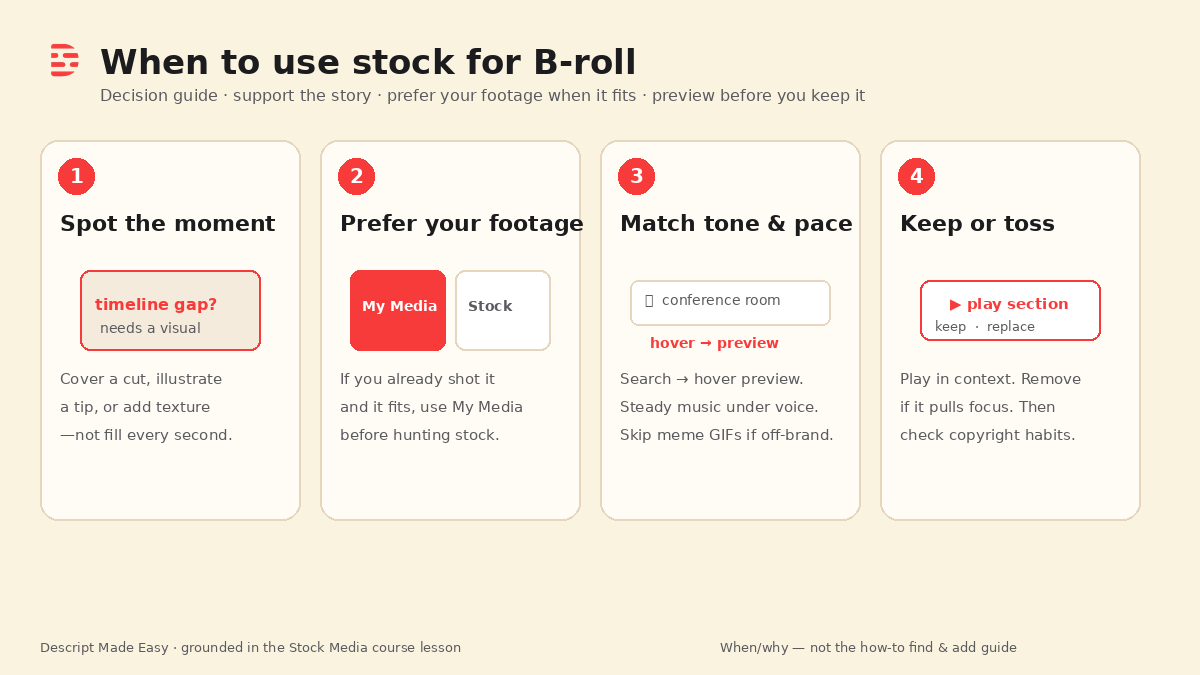
Four judgment checks from the Stock Media lesson: spot the moment → prefer your footage → match tone → keep or replace.
Watch: Using Stock Footage in your Descript Project
Matching clip from Descript Made Easy with Ross (same Stock Footage lesson as the how-to post—watch it with a when-to-use ear: preview before you keep it):

Watch on YouTube: Using Stock Footage in your Descript Project — then use the decision steps below. (The full course lesson “Stock Media” is inside Descript Made Easy.)
How do I decide: my footage vs Descript stock?
- Name the job. What does this moment need—cover a cut, illustrate a tip, add a music bed, or soft background texture?
- Check My Media first. Open the Media panel on the right side of the editor. If your folders already hold fitting B-roll (the lesson shows a Descript B-roll folder example), use that before hunting stock.
- Only then open Stock. Switch to the Stock tab (or the music-note tab for music and sound effects). You are already paying for this library—start here before buying another stock service.
- Search with intent. Keywords are tagged. If “Office” is too broad, try “Cubicle” or “Conference Room” so the clip matches the point you are making.
- Preview for tone and pacing. Hover videos to preview. For music, use play and glance at length and waveform—steady volume is often easier under a voice than quiet-to-loud swings.
- Drag in, then judge in context. Click and drag into the composition. Play the section with your voice. If it distracts, replace it. Precise trim and styling come in later editing lessons.
- Know the soft boundaries. Giphy GIFs (meme-style clips) update over time and the course notes say they are not for commercial use. Stickers and meme GIFs can also fight a calm teaching tone—skip them when they pull focus.
Need the full find-and-add walkthrough? Use the Stock Media beginner guide. Official UI map: Media panel (My Media and Stock).
How do I hide a jump cut with B-roll (stock or your own)?
A common beginner move: cover a jump with a short B-roll plate. Stock can do that job when you lack your own cutaway. The judgment still applies—pick something that fits the topic and pacing, preview it, and keep it only if the cut feels smoother without hijacking the story. Call-side tip from group coaching: B-roll is one way to soften a jump (alongside crossfade or punch-in)—choose the lightest fix that serves the viewer.
Before you publish: copyright habits (pointer only)
Do not invent licensing rules here. The Stock Media lesson notes point ahead to copyright / YouTube-flag lessons, including that Giphy GIFs are not for commercial use. For a live cautionary read, see YouTube Flagging Descript’s Stock Media. Help starting point: How to avoid and resolve YouTube copyright strikes when using stock media. Upcoming copyright posts in this series go deeper; if you are unsure, pause before you upload.
Get the printable when-to-use stock checklist
Want a one-page decision checklist (spot the moment → prefer your footage → preview → keep or toss)? Enter your email below—button copy is Get the checklist. Feel free to print.
FAQ
When should I use Descript stock media for B-roll?
When a moment needs a supporting visual or audio texture and you do not already have fitting footage of your own. Prefer My Media when your real clips work.
Is using stock “cheating”?
No. The lesson treats stock as a normal part of making videos more interesting—as long as it supports the story instead of replacing it.
When should I skip stock and use my own clips?
Whenever you already shot something that fits. Your own B-roll usually feels more personal than a common stock clip.
Can I use stock (or Giphy GIFs) on monetized YouTube videos?
Do not assume. Follow Descript’s copyright guidance and the course copyright lessons. Giphy GIFs are called out as not for commercial use. Check current publishing rules for your channel.
How much stock is too much?
The lesson does not give a percentage. Use stock to add texture; if a clip pulls attention off your point, replace it. Support the story—don’t bury it under generic plates.
Keep learning
- Descript for Beginners
- Stock Media in Descript: Beginner Guide (how to find & add)
- Find and Manage Project Media in Descript
- How to Organize Files in the Descript Media Library
- YouTube Flagging Descript’s Stock Media
- Descript Help: Media panel
- Free getting-started class
- Descript Made Easy
Want live help while you learn? Join the free 1-hour class: https://www.descriptmastery.com/getting-started-with-descript
Or go straight to Descript Made Easy: https://www.descriptmastery.com/
Check out the Descript Mastery School - my step-by-step blueprint for creating beautiful videos in 25% of the time.
Get 🔥 Descript tips!
Receive Descript tips, free resources, and easy-to-follow tutorials by email.
We hate SPAM. We will never sell your information, for any reason.