Stock Media in Descript: Beginner Guide
Sep 29, 2026
Direct answer: To add stock media in Descript, open a project, click the Media button on the right side of the editor, switch from My Media to the Stock tab, search or browse (videos, Giphy GIFs, images, stickers, backgrounds—or music and sound effects on the music-note tab), preview, then click and drag the clip into your composition.
This is the how to find and add guide. A later post covers when to use stock as B-roll. Copyright and YouTube publishing habits belong in the copyright lessons—don’t treat this page as legal advice.
This article was written with AI, based on a real Descript Made Easy lesson by the humans behind Descript Made Easy.
What Descript stock media is for
Besides footage you shot yourself, Descript includes a large stock library with your subscription. Stock is the familiar “people working in an office” style of generic clips, plus images, GIFs, stickers, backgrounds, music, and sound effects. Third-party stock services exist, but you are already paying for Descript’s library—so start here before buying another one.
Stock adds texture: B-roll, subtle backgrounds behind a podcast interview, music beds, and SFX that make a cut more interesting. Precise trim and styling come in later editing lessons; this lesson is about finding and dropping media in.
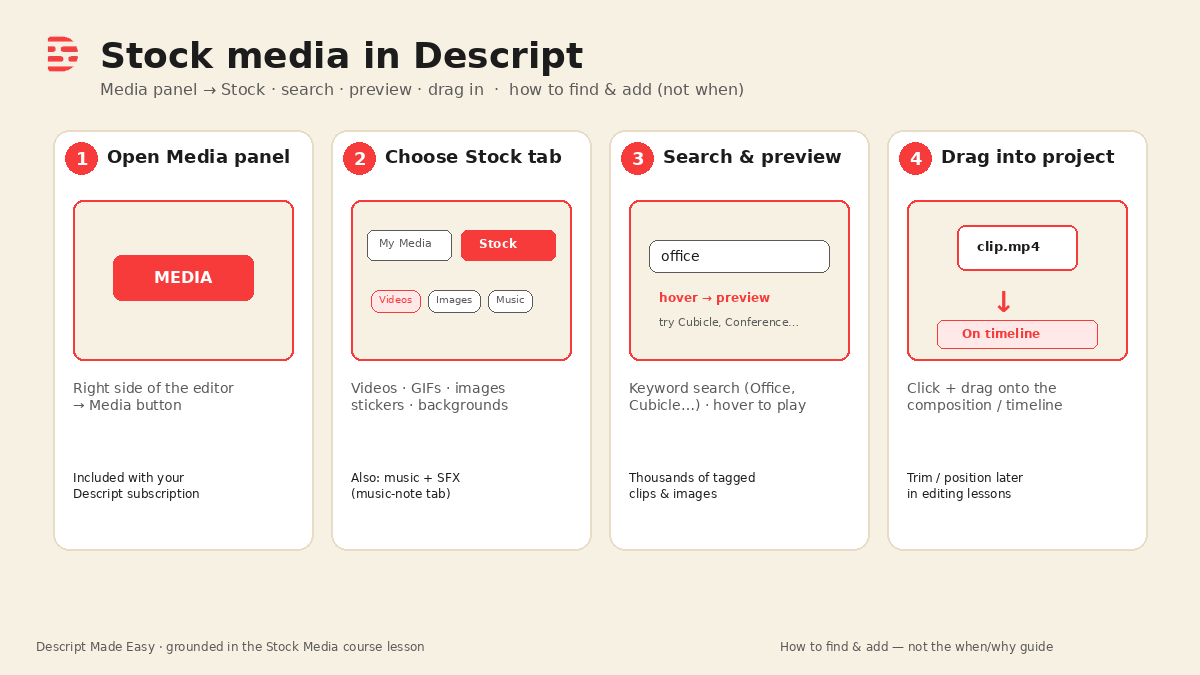
Four checkpoints from the Stock Media lesson: Media panel → Stock → search/preview → drag in.
Watch: Using Stock Footage in your Descript Project
Matching clip from Descript Made Easy with Ross:

Watch on YouTube: Using Stock Footage in your Descript Project — then follow the step-by-step below. (The full course lesson “Stock Media” is inside Descript Made Easy.)
Where do I find stock media in Descript?
Inside a project editor (not only on the Drive homepage):
- Look at the right side of the editor for the button labeled Media.
- Click it to open the media panel.
- At the top you will see My Media and Stock.
- My Media — your Media Library / folders (the previous Importing & Using Media lessons: logos, your own B-roll, etc.).
- Stock — Descript’s built-in library: stock videos, Giphy GIFs, images, Giphy stickers, and backgrounds.
Beside the visual stock area, the music-note control opens music and sound effects—same idea: search, preview, drag in.
Official help: Media panel (My Media and Stock).
How do I add a stock clip to my project? (step by step)
- Open the project that needs B-roll, filler visuals, music, or SFX.
- Click Media on the right side of the editor.
- Switch to the Stock tab (leave My Media when you want built-in stock, not your uploads).
- Pick a type as needed: videos, Giphy GIFs, images, stickers, or backgrounds. Use Show All when you only see a short preview row.
- Search with the search field at the top. Keywords are tagged by Descript—if “Office” is too broad, try “Cubicle” or “Conference Room.”
- Preview: hover a video to play a preview; for music/SFX use the play button and note length and waveform (steadier volume is often easier under a voice).
- Add it: click and drag the item into your video / composition. That places it so you can edit it.
- Play the section. If it distracts from your story, replace it and search again.
The lesson also briefly shows a Generate with AI control if you cannot find existing stock for videos or images. Treat that as a fallback after you have searched the library—not the main beginner path.
Stock vs your imported Media Library files
Keep the split clear:
- Stock — built-in Descript library (visuals + music/SFX) opened from the editor Media panel → Stock (or music-note tab).
- My Media / Media Library — files you uploaded or organized (see Media Library beginner guide, organize folders, and find & manage project media).
- Your own imports — footage you shot, brought in via Importing Media.
Same panel, different tab: My Media for your stuff; Stock for the subscription library.
Copyright and publishing (quick pointer only)
Do not invent licensing rules from this page. The course Stock Media notes point ahead to copyright / YouTube-flag lessons (including that Giphy GIFs are not for commercial use). For a live cautionary read on flags and stock, see YouTube Flagging Descript’s Stock Media—always verify current publishing rules for your channel. Upcoming copyright posts in this series will go deeper; if you are unsure, pause and check those before you publish.
Help starting point: How to avoid and resolve YouTube copyright strikes when using stock media.
Get the printable stock media checklist
Want a one-page checklist for Media → Stock → search → drag in? Enter your email below—button copy is Get the checklist. Feel free to print.
FAQ
Where do I find Descript stock media?
In a project, open Media on the right side of the editor, then use the Stock tab (or the music-note tab for music and sound effects).
How do I add a stock clip to my project?
Search or browse, preview (hover or play), then click and drag it into your composition.
What’s the difference between Stock and My Media?
Stock is Descript’s built-in library. My Media is your Media Library / uploads and folders from earlier lessons.
Can I search stock by keyword?
Yes. Use the search field; try more precise tags if a broad word does not surface the right clip.
Is stock media free to use on YouTube?
Do not assume. Follow Descript’s copyright guidance and the course copyright lessons. Giphy GIFs are called out as not for commercial use. Check current publishing rules for your channel.
Keep learning
- Descript for Beginners
- Importing Media in Descript: Beginner Guide
- Media Library in Descript: Where Your Files Live (Beginner Guide)
- How to Organize Files in the Descript Media Library
- Find and Manage Project Media in Descript
- YouTube Flagging Descript’s Stock Media
- Descript Help: Media panel
- Free getting-started class
- Descript Made Easy
Want live help while you learn? Join the free 1-hour class: https://www.descriptmastery.com/getting-started-with-descript
Or go straight to Descript Made Easy: https://www.descriptmastery.com/
Check out the Descript Mastery School - my step-by-step blueprint for creating beautiful videos in 25% of the time.
Get 🔥 Descript tips!
Receive Descript tips, free resources, and easy-to-follow tutorials by email.
We hate SPAM. We will never sell your information, for any reason.