Descript Drive User Interface Familiarity: Beginner Guide
Sep 24, 2026
Direct answer: When you log into Descript at web.descript.com (or open the desktop app), the first screen is your Drive—the container for every project you’ve made. Learn the left sidebar (Home, Recents, Shared with me, Favorites, Workspaces, Tools), the search bar, Record / New project, and Underlord on Home so you can find, open, and organize work before you edit.
This beginner guide is grounded in the Descript Made Easy lesson “Descript Drive User Interface Familiarity” (updated 6/20/2026). Use only what that lesson walks through on the Drive view.
This article was written with AI, based on a real Descript Made Easy lesson by the humans behind Descript Made Easy.
What is the Descript Drive view?
Your Drive is the first page after login. It holds all projects you’ve ever made. At the top of the left sidebar, a sync checkmark means your project changes have uploaded to Descript’s cloud and are saved. An upload arrow with a cloud usually means a sync is still in progress (often a slow or flaky connection).
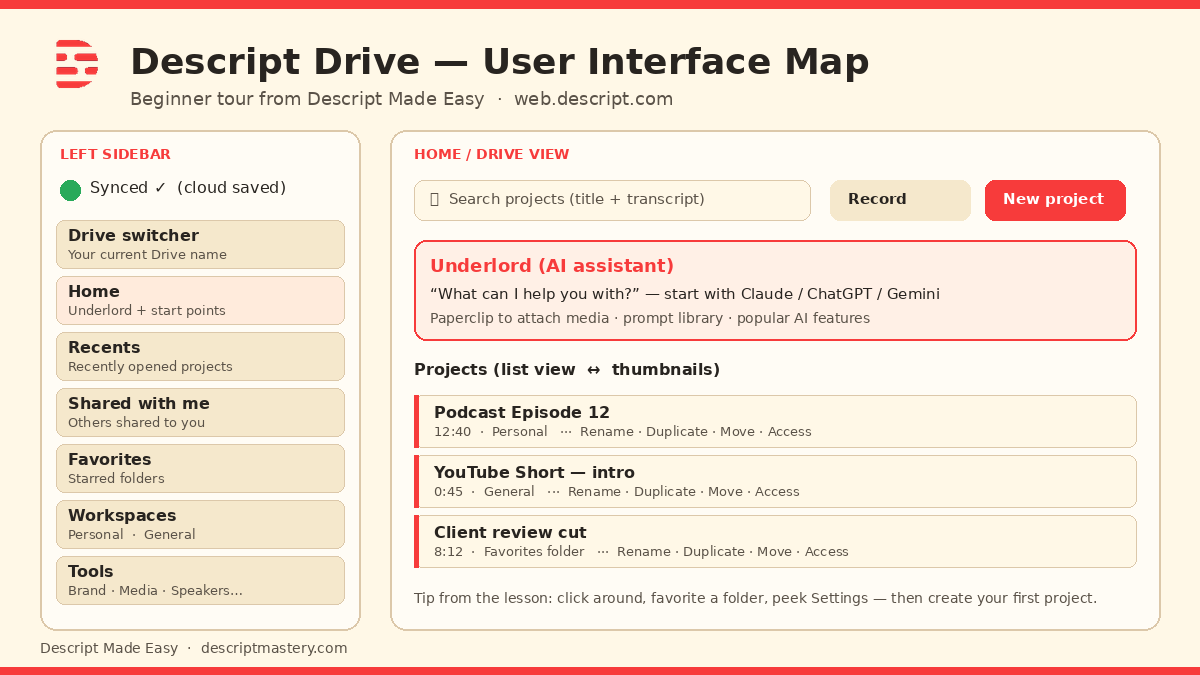
Map the Drive once—sidebar navigation on the left, Home tools and projects on the right.
Watch: Organizing Your Descript Drive
This clip from Descript Made Easy with Ross pairs well with this lesson—organizing projects on your Drive:

Watch on YouTube: Organizing Your Descript Drive — then open your own Drive and click through the same areas the lesson covers.
How do I learn the Descript Drive UI step by step?
- Land on Drive — Log in at web.descript.com (or open the desktop app). Confirm you see the Drive view, not an open project editor.
- Check sync — Look for the sync checkmark near the top of the left sidebar so you know projects are saved to Descript’s cloud.
- Note your Drive — See the Drive name you’re in. Click it if you have more than one Drive (for example client Drives) to switch.
- Tour the left sidebar — Home, Recents, Shared with me, Favorites (folders you star), then Workspaces (Personal vs General), then Tools.
- Try Recents views — Open Recents. Switch list view vs thumbnail view. Click column headers (name, duration, workspace) to sort.
- Peek Shared with me — Projects other people started and shared with you. Skip deep work here if you’re solo—just know where it lives.
- Favorite a folder — Create or open a folder (for example by year, podcast vs YouTube) and mark it Favorite so it appears in the sidebar.
- Understand Personal vs General — Personal is private to you on that Drive. General is visible to everyone who has a seat on the Drive.
- Skim Tools — Brand Studio, Media library, AI Speakers, Layout packs, and Learn Descript. Later lessons cover each; just know they live under Tools.
- Search projects — Use the top search bar. Descript searches project titles and transcript keywords, so you can find a clip by something you said.
- Find Record and New project — Record camera, screen, audio-only, or Descript Rooms; or start a blank video/audio project.
- Meet Underlord on Home — The “What can I help you with?” box is Descript’s AI assistant. You can pick Claude, ChatGPT, or Gemini-style starting points and attach media with the paperclip.
- Open help and profile — The ? menu links Help center, feature requests, changelog, contact support, and keyboard shortcuts. Profile (top right) shows account, appearance (light/dark/system/classic), Settings, and Log out.
- Do the action item — Click around your Drive, set up a favorite folder, peek Settings, and get comfortable—then create your first project in the next lesson.
What is on the Descript Drive left sidebar?
Home is the full landing view with Underlord and quick start points. Recents lists recently opened projects. Shared with me holds projects shared into your account. Favorites surfaces folders you marked. Workspaces split Personal (private) and General (shared with Drive members). Tools holds Brand Studio, Media library, AI Speakers, Layout packs, and Learn Descript.
How does Drive search work for beginners?
Because Descript projects are transcribed, search is not only titles. Type a keyword you remember saying in a video or podcast and matching projects can appear even when the word is not in the project name. If you have multiple Drives, a dropdown can limit which Drive you search.
Get the printable Drive UI checklist
Want a one-page checklist you can print and tick off while you click around Drive? Enter your email below—button copy is Get the checklist. Feel free to print it.
FAQ
What is a Descript Drive?
Your Drive is the container that holds the projects you’ve made. It is the first screen after you log in, before you open a project editor.
What does the sync checkmark mean?
It means project changes have uploaded to Descript’s cloud and are saved. An upload-style icon usually means sync is still running.
What is the difference between Personal and General workspaces?
Personal is private to you on that Drive (useful when you have added seats). General is accessible to every member of the Drive.
Can I search inside my videos from Drive?
Yes. Drive search uses titles and transcript keywords, so you can find projects by words spoken in the media.
Where do I start a new project from Drive?
Use New project for a blank video or audio project, or Record for camera, screen, audio-only, or Descript Rooms. Underlord on Home is another AI-assisted starting point.
Where should I go next as a beginner?
Use the Descript for Beginners hub, learn terminology, then create your first project.
Keep learning
- Descript for Beginners
- Descript Terminology + Top 25 Terms: Beginner Guide
- Descript Settings Worth Changing on Day One
- How to Customize Your Descript Setup (Beginner Guide)
- Get Started in Descript from Absolute Zero
- Your First 30 Minutes in Descript
- Free getting-started class
- Descript Made Easy
Want live help while you learn? Join the free 1-hour class: https://www.descriptmastery.com/getting-started-with-descript
Or go straight to Descript Made Easy: https://www.descriptmastery.com/
Check out the Descript Mastery School - my step-by-step blueprint for creating beautiful videos in 25% of the time.
Get 🔥 Descript tips!
Receive Descript tips, free resources, and easy-to-follow tutorials by email.
We hate SPAM. We will never sell your information, for any reason.