Descript Terminology + Top 25 Terms: Beginner Guide
Sep 10, 2026
Direct answer: In Descript Made Easy, the “Descript Terminology + Top 25 Terms” lesson gives you a short vocabulary list so words like Drive, Project, Composition, Scene, Script/Transcript, Timeline, Underlord, Export, and Captions mean the same thing every time they show up in the UI and in later lessons. Print the Top 25, make flashcards, or keep the list on your wall while you learn.
This beginner guide is grounded in that Descript Made Easy lesson. The definitions below match the course’s “My Top 25 Descript Terms to know” handout linked from the lesson.
This article was written with AI, based on a real Descript Made Easy lesson by the humans behind Descript Made Easy.
What Descript words should beginners learn first?
The lesson highlights terms you will hear a lot: workspace view, private workspace, seats, drives, folders, projects, compositions, timeline, scenes, layers, transcript, canvas (now Scene Editor), scene thumbnails, markers, project files, Underlord, and publish. Mastering those labels first makes every later click less confusing.
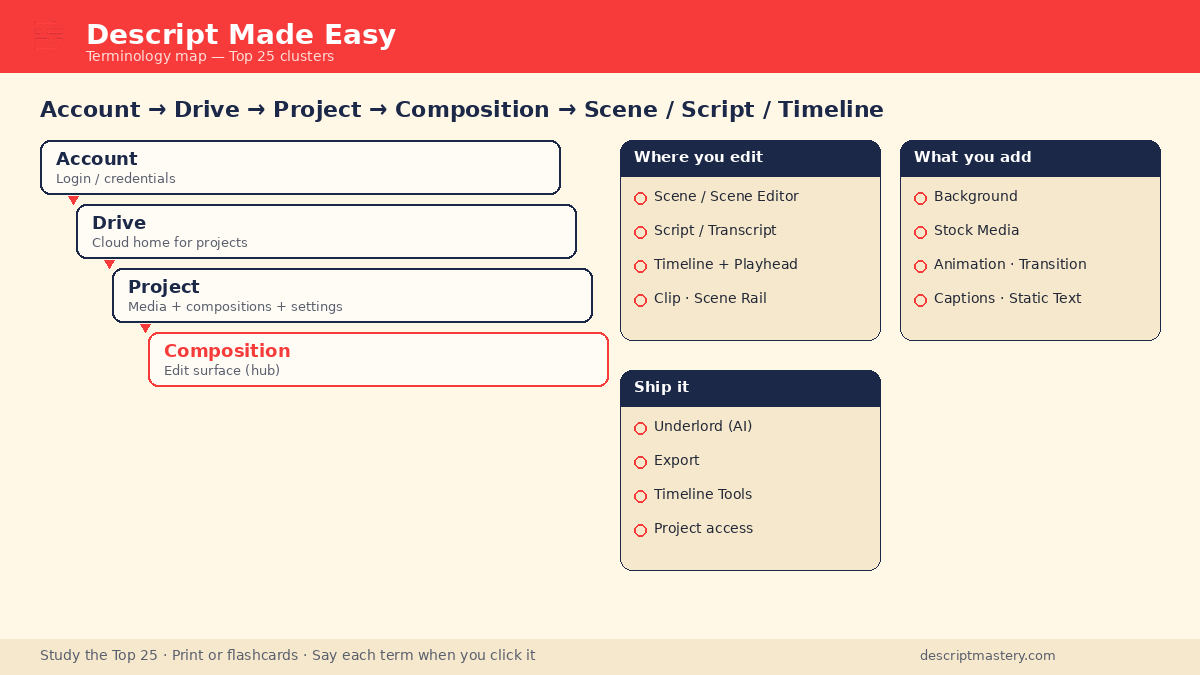
Nest the hierarchy first—then cluster the rest of the Top 25 by edit surface, add-ons, and shipping.
Watch: Descript Vocabulary
This clip from Descript Made Easy with Ross matches this lesson—Descript Vocabulary—so you can hear the words while you study the Top 25 list:

Watch on YouTube: Descript Vocabulary — then open the Top 25 handout from the Descript Made Easy lesson and practice saying each term when you click it.
How do I learn Descript terminology step by step?
- Open the Top 25 list — In the Descript Made Easy lesson, open the linked Google Doc titled roughly “My Top 25 Descript Terms to know (for this course).”
- Skim the hierarchy — Notice how Account → Drive → Workspace folders → Project → Composition nests your work from login down to the edit surface.
- Learn the “where you edit” words — Composition, Script/Transcript, Script editor, Scene, Scene Editor (formerly Canvas), Scene Rail, Scene thumbnail, Timeline, Playhead, and Clip.
- Learn the “what you add” words — Background, Stock Media, Animation, Transition, Captions, and Text (static text).
- Learn the “ship it” words — Underlord (AI assistant), Export, Timeline Tools, and Project access (plus Publish, called out in the lesson narration list).
- Do the action item — Study the key terminology; print the Top 25, make flashcards, or post them somewhere visible near your desk.
- Use the words while you click — On your next Descript session, say the term out loud when you open a Drive, create a Project, edit a Composition, split a Scene, or Export.
What are the Descript Top 25 terms (course definitions)?
- Drive — Holds your projects. You can have multiple drives under one Descript account. Think of it like a hard drive in the cloud.
- Workspace — The area where you organize Descript projects into folders.
- Account — The email address and credentials you use to access Descript.
- Project — A container that stores media, compositions, and settings for a Descript production.
- Project access — A user’s permission level to view or edit a project.
- Composition — The main area where audio, video, text, and effects are organized and edited into your final piece—the hub for assembling and refining content.
- Scene — A video segment created by adding a division in the script so media can be edited separately.
- Scene boundary — The start or end point of a scene in a composition.
- Scene Editor — Where you arrange and adjust visuals in scenes (not visible in audio-only compositions). Previously known as the Canvas.
- Scene Rail — Left panel of scene thumbnails so you can navigate and rearrange scenes without changing the underlying media.
- Scene thumbnail — Visual representation of scenes shown in the script editor.
- Script/Transcript — The underlying text that ties visuals, audio, and scenes together in a composition.
- Script editor — Where you edit the script, correct the transcript, and work with AI-generated speech.
- Clip — A section of audio, video, or other media you can edit, move, or adjust on the timeline or in the Scene Editor.
- Background — The base layer or color of a scene.
- Playhead — The indicator that marks where playback will begin on the timeline.
- Underlord — An AI assistant in Descript that helps you use AI-driven features in the platform.
- Stock Media — Pre-licensed audio, video, and image assets in Descript’s stock panel you can add without hunting files elsewhere.
- Timeline — Where you control timing, apply effects, and make edits.
- Timeline Tools — Select, Blade, Range, Slip, and Hand tools for selecting, cutting, and moving on the timeline.
- Animation — A change to a visual layer’s properties between start and end points.
- Transition — How one scene goes out and the next scene comes in.
- Export — Saving or publishing your composition to file formats (such as MP4, WAV, GIF) or other locations.
- Captions — Text connected to your composition’s script, often used for subtitles or accessibility.
- Text (static text) — Text you create yourself by typing into a text box.
How is a Drive different from a Project or Composition?
Drive holds projects (like cloud storage for your Descript work). A Project is the container for media, compositions, and settings. A Composition is the edit surface inside the project where you actually assemble the piece. Beginners often mix these up—keep the nesting straight and the UI feels calmer.
What is the Script/Transcript in Descript?
The script/transcript is the text backbone of a composition. Edits in the script editor connect to visuals, audio, and scenes, which is why Descript feels like editing a document instead of only dragging clips.
If you want to go a step further, read curious About These Buttons? Descript’s Timeline Tools Explained!.
Get the printable Top 25 terminology checklist
Want a one-page checklist you can print and tick off while you learn the Top 25? Enter your email below—button copy is Get the checklist. Feel free to print it.
FAQ
Do I need to memorize all 25 Descript terms on day one?
No. Start with Drive, Project, Composition, Scene, Script/Transcript, Timeline, Clip, Underlord, Export, and Captions. Add the rest as you meet them in the UI.
What was the Canvas in Descript?
The course notes that Scene Editor was previously known as the Canvas—the place you arrange and adjust visuals in a scene (not used in audio-only compositions).
What are Timeline Tools?
Select, Blade, Range, Slip, and Hand—the tools for selecting, cutting, and moving on the timeline.
What is Underlord?
Underlord is Descript’s AI assistant for navigating and using AI-driven features inside the app.
How should I study the Top 25?
Follow the lesson action item: study the list, print it, make flashcards, or post it near your workspace so the words stick while you practice.
Where should I go next as a beginner?
Use the Descript for Beginners hub, then customize setup and keep practicing with a first project.
Keep learning
- Descript for Beginners
- How to Customize Your Descript Setup (Beginner Guide)
- Descript Settings Worth Changing on Day One
- Descript Resources: Beginner Guide
- Get Started in Descript from Absolute Zero
- Your First 30 Minutes in Descript
- Free getting-started class
- Descript Made Easy
Want live help while you learn? Join the free 1-hour class: https://www.descriptmastery.com/getting-started-with-descript
Or go straight to Descript Made Easy: https://www.descriptmastery.com/
Check out the Descript Mastery School - my step-by-step blueprint for creating beautiful videos in 25% of the time.
Get 🔥 Descript tips!
Receive Descript tips, free resources, and easy-to-follow tutorials by email.
We hate SPAM. We will never sell your information, for any reason.