Find, Open, and Duplicate Projects in Descript Drive
Sep 25, 2026
Direct answer: In Descript Drive (the first screen after you sign in at web.descript.com or open the desktop app), find projects with Recents, folders/Favorites, or Search (titles and spoken keywords from transcripts); open a project by clicking it; and duplicate from Drive by clicking the ellipsis (…) next to the project name and choosing Duplicate project (or File > Duplicate inside the editor). The copy lands on the same Drive with “(Copy)” in the name.
This beginner how-to is grounded in the Descript Made Easy lesson “Descript Drive User Interface Familiarity” (updated 6/20/2026), with duplicate steps confirmed against Descript’s Duplicate help article and the Drive view overview.
This article was written with AI, based on a real Descript Made Easy lesson by the humans behind Descript Made Easy.
What is Descript Drive (and why does find/open matter first)?
Your Drive is the container for every project you have made. Before you edit, get comfortable locating the right project, opening it, and—when you want a safe copy to experiment on—duplicating it without touching the original.
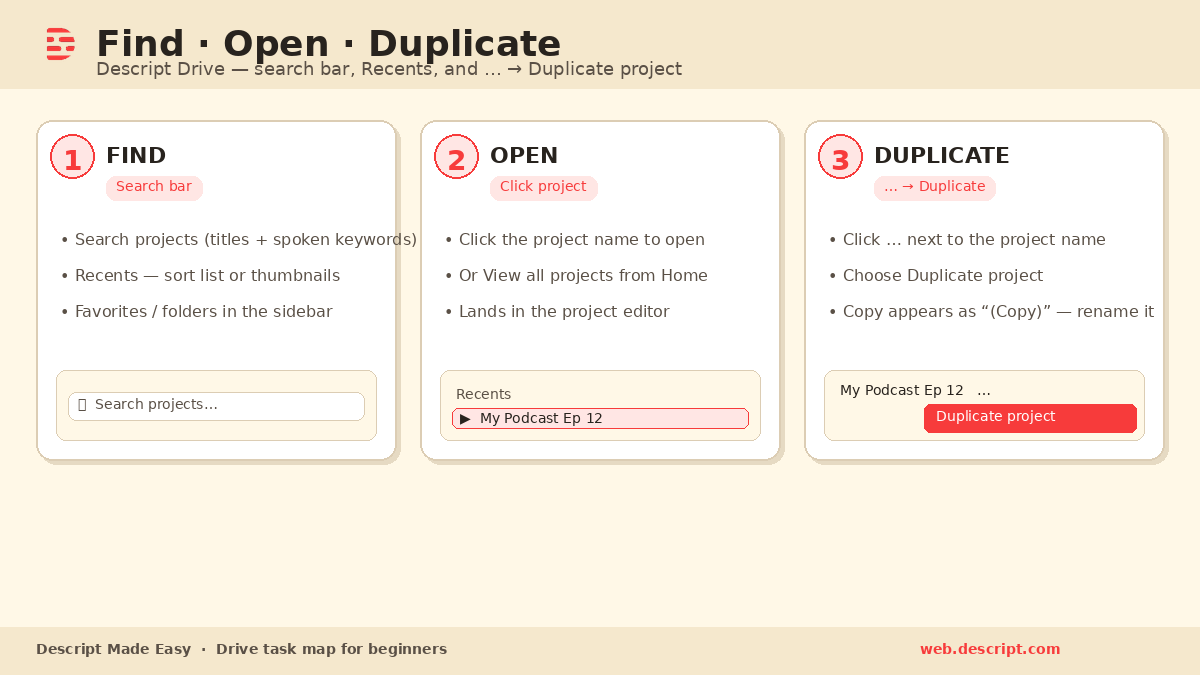
Three Drive tasks beginners need first: find, open, and duplicate.
Watch: Organizing Your Descript Drive
This clip from Descript Made Easy with Ross pairs well with this lesson—organizing and finding projects on your Drive:

Watch on YouTube: Organizing Your Descript Drive — then open your own Drive and practice find, open, and duplicate.
Optional: the source course lesson video is also on Kajabi (Wistia mom3becvgl) if you are already enrolled in Descript Made Easy.
How do I find a project in Descript Drive?
- Confirm sync and the right Drive — At the top of the left sidebar, look for the sync check mark (projects uploaded and saved in Descript’s cloud). An up-arrow-with-cloud means upload is still in progress. Below that, click the Drive name if you have more than one Drive and need to switch.
- Start on Home — Home is the landing view after login. It shows Underlord (“What can I help you with?”), starting points, and a short list of recent projects. Click a recent project here when it is already on that short list.
- Open Recents for a fuller list — Recents lists projects you opened lately. Sort by clicking column headers (name, duration, workspace, and so on). Switch list vs thumbnail view with the square icon in the top right—list shows more at once; thumbnails show the first frame of each video.
- Use folders and Favorites — Create folders to group projects (by year, month, podcast vs YouTube, client, etc.). Mark a folder as a favorite so it appears in the left sidebar for quick access.
- Check Shared with me only if it applies — These are projects others started on their Drives and shared with you. Solo beginners often skip this tab.
- Search by title or spoken words — Use Search projects in the header. Because projects are transcribed, keywords you said in a video or podcast can surface the file even when the title does not match. If you have multiple Drives, use the search dropdown to limit which Drive you search.
How do I open a project once I find it?
- Click the project in Home, Recents, a folder, Search results, or Shared with me to open it in the editor.
- From Home, use View all projects if you only see the last few recent projects—that jumps you to the Recents tab for the full sortable list.
- Know Personal vs General — Under Workspaces, Personal is private to you (useful when another seat/editor is on the Drive). General is visible to everyone on that Drive. Open from the workspace that actually holds the project you need.
How do I duplicate a project in Descript Drive?
Duplicating makes a full copy (compositions, files, and sequences) so you can change the copy without touching the original. A new project appears on the same Drive with the same name plus “(Copy)”—rename it anytime. (Confirmed in Descript’s official Duplicate help.)
- From Drive view: Find the project, click the ellipsis (…) next to its name (or right-click the project), then choose Duplicate project.
- From inside the editor: Open the menu in the top-left corner and select File > Duplicate.
- Optional next step: After the copy appears in Drive, open it and rename it so you can tell the experiment apart from the original.
Drive project actions (including Duplicate) also appear when you right-click a project or open the … menu—alongside rename, move, copy link, access, and delete. Stick to Duplicate when you only need a safe copy on the same Drive.
How to find, open, and duplicate (quick path)
- Sign in and confirm the sync check mark and correct Drive.
- Find the project via Recents, a favorite folder, or Search (title or spoken keyword).
- Click the project to open it—or, to copy first, use … → Duplicate project, then open the “(Copy).”
- Practice: set a favorite folder, search for a word you know you said, and duplicate one non-critical project so the steps feel familiar before your first real edit.
Get the printable Find / Open / Duplicate checklist
Want a one-page checklist you can print and tick off while you practice find, open, and duplicate on Drive? Enter your email below—button copy is Get the checklist. Feel free to print it.
FAQ
Where do I find projects I opened yesterday?
Use Recents in the left sidebar (sortable list or thumbnails). Home only shows a short recent strip plus View all projects.
Can Search find a project if I forgot the title?
Yes. Search uses transcripts, so keywords spoken in the video or podcast can surface the project even when they are not in the title.
What does Duplicate project create?
A full copy of the project on the same Drive, named with “(Copy),” including compositions, files, and sequences. Edit the copy without changing the original.
Do I duplicate from Drive or from inside the project?
Either. In Drive: … next to the project → Duplicate project. In the editor: File > Duplicate.
Is Shared with me where my own projects live?
No. Shared with me is only projects others shared with you. Your own work lives under Home, Recents, folders, and your workspaces.
Where should I go next as a beginner?
Read the Descript Drive User Interface Familiarity: Beginner Guide for the full Drive map, then use the Descript for Beginners hub.
Keep learning
- Descript for Beginners
- Descript Drive User Interface Familiarity: Beginner Guide
- Descript Terminology + Top 25 Terms: Beginner Guide
- Descript Settings Worth Changing on Day One
- Get Started in Descript from Absolute Zero
- Free getting-started class
- Descript Made Easy
If you want to go a step further, read organizing Your Descript Drive.
Want live help while you learn? Join the free 1-hour class: https://www.descriptmastery.com/getting-started-with-descript
Or go straight to Descript Made Easy: https://www.descriptmastery.com/
Check out the Descript Mastery School - my step-by-step blueprint for creating beautiful videos in 25% of the time.
Get 🔥 Descript tips!
Receive Descript tips, free resources, and easy-to-follow tutorials by email.
We hate SPAM. We will never sell your information, for any reason.