Media Library in Descript: Where Your Files Live (Beginner Guide)
Sep 27, 2026
Direct answer: The Media Library in Descript is the Drive-level place you store files you reuse in every project—logos, B-roll, music, subscribe buttons, and similar assets. Open it from the Descript homepage: left sidebar under Tools, click Media library. Create a folder, add files (drag them in, or Add media → Add from project), then pull those files into any project with the Project tab plus button.
This is different from the Files list inside one project after a local import. Import gets a file into a project; the Media Library is the shared store you come back to across projects and computers. For importing phone footage or podcast audio into a project first, see Importing Media in Descript: Beginner Guide, Import Video into Descript Step by Step, and Import Audio into Descript Step by Step.
This article was written with AI, based on a real Descript Made Easy lesson by the humans behind Descript Made Easy.
What the Media Library is for
Think of it as your reusable kit. The Descript Made Easy lesson “Media Library” (Core Skills / Importing & Using Media) shows storing logos, B-roll, music, subscribe buttons, and other files you use again and again. Because the library lives at the Drive level, those files are available on any internet-connected computer—you are not hunting through folders on one hard drive each time.
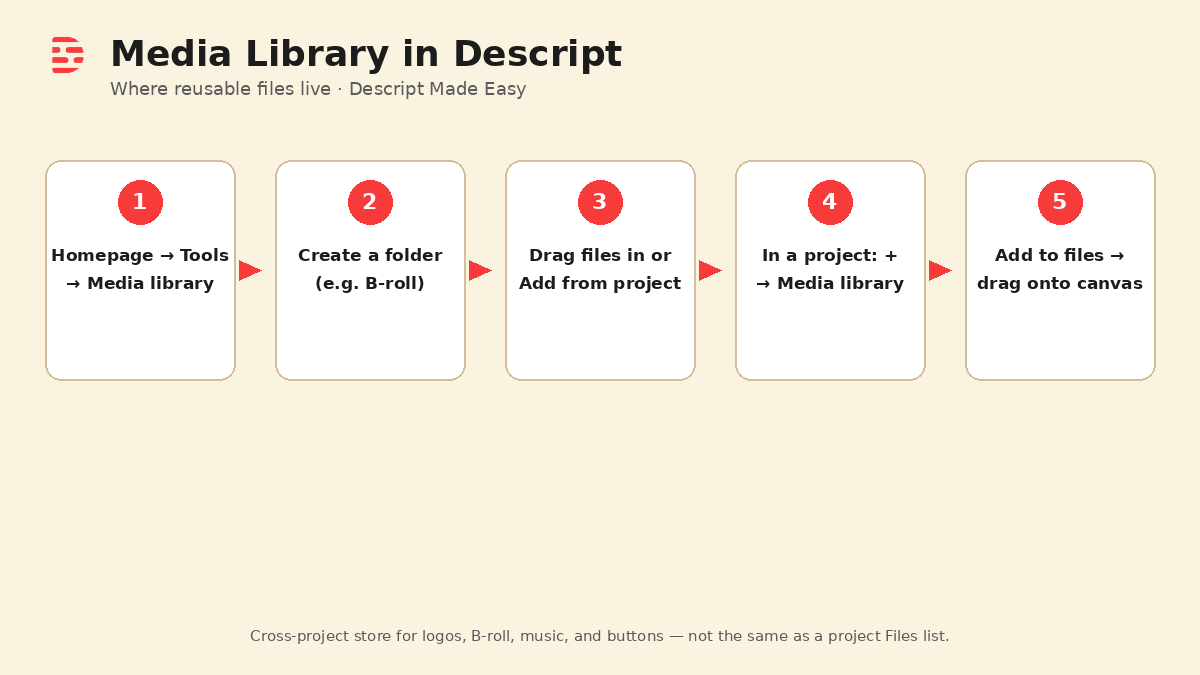
Five checkpoints for finding the Media Library, stocking it, and pulling files into a project.
Watch: Descript Drive User Interface Familiarity
There is no dedicated “Media Library” upload on Descript Made Easy with Ross yet. The closest match is the Drive UI tour—Media library sits under Tools on the homepage/Drive sidebar:

Watch on YouTube: Descript Drive User Interface Familiarity — use it to orient on the homepage sidebar, then open Tools → Media library as this lesson shows. (The full course lesson “Media Library” is inside Descript Made Easy.)
How to open the Media Library and find a clip
Follow the path from the lesson:
- Go to the Descript homepage (Drive view)—not deep inside an editing composition.
- In the left sidebar, under Tools, click Media library.
- Create a folder if you want a home for related files (Ross makes a Descript B-roll folder in the lesson).
- Add files: drag them into the library, or use Add media → Add from project to pull something out of an existing project without uploading it again.
- To use a library file in a video: open a project → go to the Project tab → click the plus button → choose Media library → pick one or more files (Shift-click for several) → Add to files.
- Then drag those files onto the canvas.
Official help: Media library: organize and reuse content across projects and Import media library files to your project.
Media Library vs timeline vs project Files
Keep these three places straight:
- Media Library — Drive-level store for reusable assets across projects (this post).
- Project Files list — media already inside the project you are editing (where local imports land).
- Timeline / Scene Editor / transcript — where you actually cut and arrange the edit. See Transcript, Scene Editor, and Timeline: Descript Editor Map and How to Navigate the Descript Editor.
You add from the Media Library into project Files, then place on the canvas/timeline. The library is not a replacement for the timeline.
What you can do here before you edit
From the lesson alone, before you worry about fancy edits:
- Open Media library from homepage Tools
- Create a simple folder
- Stock it (drag in, or Add from project)
- Pull files into a project with plus → Media library → Add to files
- Drag onto the canvas
Deeper folder organizing and find/manage habits get their own posts next in the queue. This article stays on what the Media Library is and where it lives.
Get the printable Media Library checklist
Want a one-page checklist you can print while you practice opening the library and adding a file to a project? Enter your email below—button copy is Get the checklist. Feel free to print it.
FAQ
Where is the Media Library in Descript?
From the Descript homepage, open the left sidebar under Tools and click Media library.
What should I put in the Media Library?
Files you reuse across projects—logos, B-roll, music, subscribe buttons, and similar assets (per the course lesson).
Is the Media Library the same as the project Files list?
No. Project Files holds media for that project. The Media Library is the Drive-level reuse store. Import posts cover getting a local file into Files; this post covers the library.
How do I use a library file in a project?
Open the project, Project tab, plus button, choose Media library, pick files (Shift-click for several), Add to files, then drag onto the canvas.
Can I add a file from an existing project without uploading again?
Yes. In the Media Library, use Add media → Add from project.
Keep learning
- Descript for Beginners
- Importing Media in Descript: Beginner Guide
- Import Video into Descript Step by Step
- Import Audio into Descript Step by Step
- Transcript, Scene Editor, and Timeline: Descript Editor Map
- Descript Drive User Interface Familiarity: Beginner Guide
- Descript Help: Media library overview
- Descript Help: Import media library files
- Free getting-started class
- Descript Made Easy
Want live help while you learn? Join the free 1-hour class: https://www.descriptmastery.com/getting-started-with-descript
Or go straight to Descript Made Easy: https://www.descriptmastery.com/
Check out the Descript Mastery School - my step-by-step blueprint for creating beautiful videos in 25% of the time.
Get 🔥 Descript tips!
Receive Descript tips, free resources, and easy-to-follow tutorials by email.
We hate SPAM. We will never sell your information, for any reason.