Media Details and Settings in Descript: Beginner Guide
Oct 02, 2026
Direct answer: In Descript, media details and settings live under the Project panel’s Files list. Open a project, click a source file to open its floating preview, then read the file details (frame rate, duration, stereo/mono, file size, resolution, how many compositions use it, and transcription language). From the three-dot menu you can also organize with folders, add to the Media Library, download a raw copy, delete, or convert stereo to mono when stereo causes issues.
This article was written with AI, based on a real Descript Made Easy lesson by the humans behind Descript Made Easy.
What do “media details and settings” mean in Descript?
Every source file that makes up your project lives inside the project folder. The lesson walks the Files section: create folders, preview a clip, inspect technical details, and use search/sort/filter so a messy project stays usable. This is per-file orientation—not project aspect ratio or export settings (those live elsewhere).
For bringing files in, see Importing Media in Descript: Beginner Guide. For finding and managing project media at a higher level, see Find and Manage Project Media in Descript. For swapping a wrong source later, see Replace Media in Descript: Beginner Guide.
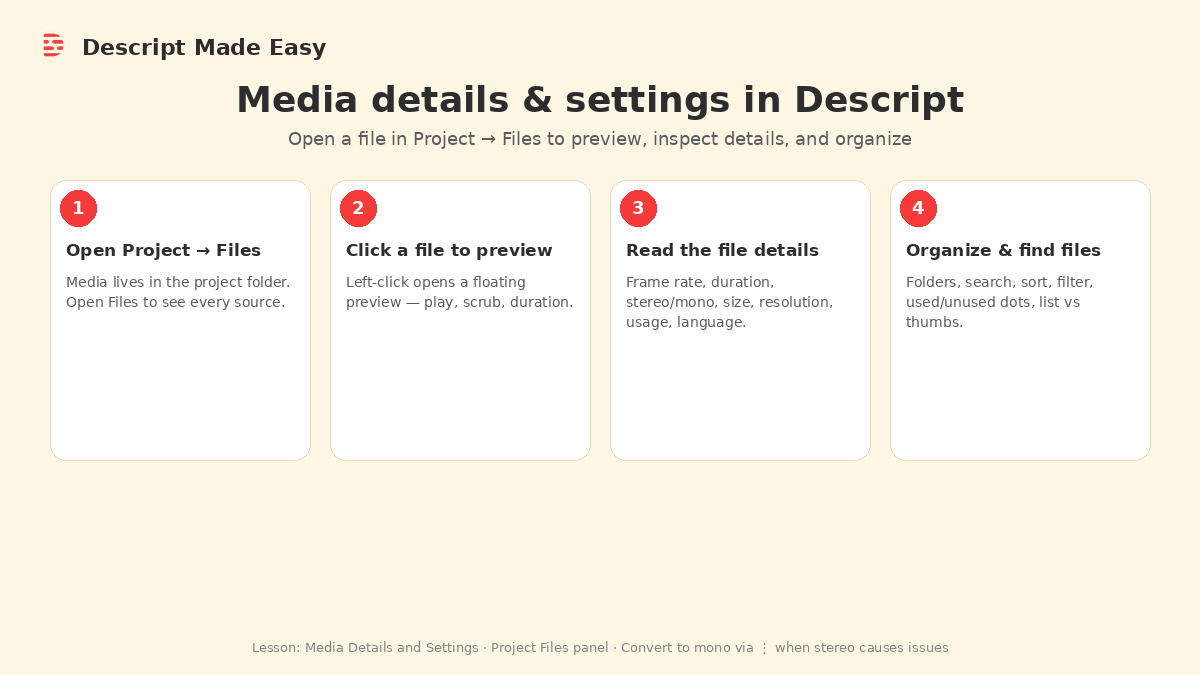
Four beginner steps from the lesson: open Project → Files → click a file to preview → read the details → organize with folders, search, sort, and filter.
How do I open details and settings on a clip?
Follow the Descript Made Easy lesson path:
- Open your project and click the Project control so the project folder / Files list is visible.
- Find your file under Files (you can create a folder with the plus button, drag files in, and rename folders from the three-dot menu—e.g. an Archives folder).
- Left-click a single file (click and release). A floating preview window opens so you can play, scrub, and see duration.
- Read the file details in that panel (frame rate, duration, audio stereo/mono, file size, resolution, usage count, transcription language). Advanced fields like sample rate and bit rates are there too; the lesson treats those as beyond beginner scope.
- Use the three-dot menu on a file when you need actions: delete, download a raw copy to your computer, add to Media Library, or Convert to mono if stereo is causing issues.
- Optional: from the preview you can also Insert into script or Add as a new layer (script vs layer is covered in later lessons).
Official Descript help (for accuracy, not extra features): Project file actions (includes Show file metadata) and Project panel.
Which settings are worth checking as a beginner?
Stick to what the lesson explains in the details panel:
- Frame rate — how many images per second. The lesson example shows 60 FPS. If a video looks really choppy, check whether the frame rate is below about 24.
- Duration — how long the source is.
- Audio: stereo or mono — stereo splits left/right; mono is one sound. Sometimes stereo causes issues; use the three-dot menu’s Convert to mono when that helps.
- File size — how big the file is on disk (MB/GB).
- Resolution — the pixel dimensions; the last number often matches labels like 1080, 720, or 4K.
- Usage — how many compositions in this project use the file.
- Transcription language — e.g. US English in the lesson demo.
Leave the more technical fields alone unless you have a specific reason. Changing settings will not magically fix a poorly recorded source—the lesson’s first move for choppy video is diagnosis (check frame rate), not a magic toggle.
When should I leave defaults alone?
If playback looks and sounds fine, you do not need to convert audio or dig into bit rates. Use folders, search, sort, and filter when the Files list gets crowded: sort by name, type, duration, or usage; filter to audio, images, video, or video+images; unused files show a little dot (used files do not). Toggle list view vs larger thumbnails with the view button when you want to recognize clips at a glance.
Related next steps: Media Library beginner guide, organize Media Library folders, and swap a retake into your timeline when you need Replace Media.
Get the printable media-details checklist
Want a one-page checklist (open Files → select file → read details → change only what you understand → play to confirm → optional organize)? Enter your email below—button copy is Get the checklist. Feel free to print.
FAQ
Where are media details and settings in Descript?
Open the Project panel, go to Files, left-click a source file, and read the details in the floating preview panel.
Are these project settings or per-file settings?
Per-file. The lesson is about each source in Files (preview + details + file actions), not global project/export settings.
Will changing settings fix bad audio or video quality?
Not as a magic fix. The lesson uses details to diagnose (e.g. low frame rate looks choppy) and offers Convert to mono when stereo causes issues. Re-record or replace the source when the file itself is the problem.
Do I need to check media details before every export?
The lesson does not require a pre-export ritual. Check details when something looks wrong, when you are organizing Files, or when you want to confirm frame rate, stereo/mono, resolution, or usage.
How do I find one clip in a crowded Files list?
Use search, sort (name, type, duration, usage), filter (audio/images/video), watch for the unused-file dot, and switch between list and larger thumbnail view.
Keep learning
- Descript for Beginners
- Media Library in Descript: Beginner Guide
- Find and Manage Project Media in Descript
- Importing Media in Descript: Beginner Guide
- Replace Media in Descript: Beginner Guide
- How to Organize Files in the Descript Media Library
- Descript Help: Project file actions
- Free getting-started class
- Descript Made Easy
Want live help while you learn? Join the free 1-hour class: https://www.descriptmastery.com/getting-started-with-descript
Or go straight to Descript Made Easy: https://www.descriptmastery.com/
Check out the Descript Mastery School - my step-by-step blueprint for creating beautiful videos in 25% of the time.
Get 🔥 Descript tips!
Receive Descript tips, free resources, and easy-to-follow tutorials by email.
We hate SPAM. We will never sell your information, for any reason.