Swap a Retake into Your Descript Timeline
Oct 01, 2026
Direct answer: When you re-record a take and have a new file on disk, use Replace Media to swap that new file into the clip already on your Descript timeline or canvas—without rebuilding the scene. Click the clip, choose View media, open the three-dot menu, then Replace → Replace file, pick the new take, and confirm. This is a file swap for a new take; it is not Remove Retakes / Underlord.
This article was written with AI, based on a real Descript Made Easy lesson by the humans behind Descript Made Easy.
When do I swap a retake with Replace Media?
Use this workflow after you re-record a take (or finish a better take) and the new file is on your computer. The clip you want to update is already placed in the project. Instead of deleting that clip and rebuilding layout, timing, and placement, you replace the source file in place with the new take.
This post is the retake outcome. For the Replace Media feature overview (wrong-date image example), see Replace Media in Descript: Beginner Guide. For finding clips already in the project, see Find and Manage Project Media in Descript.
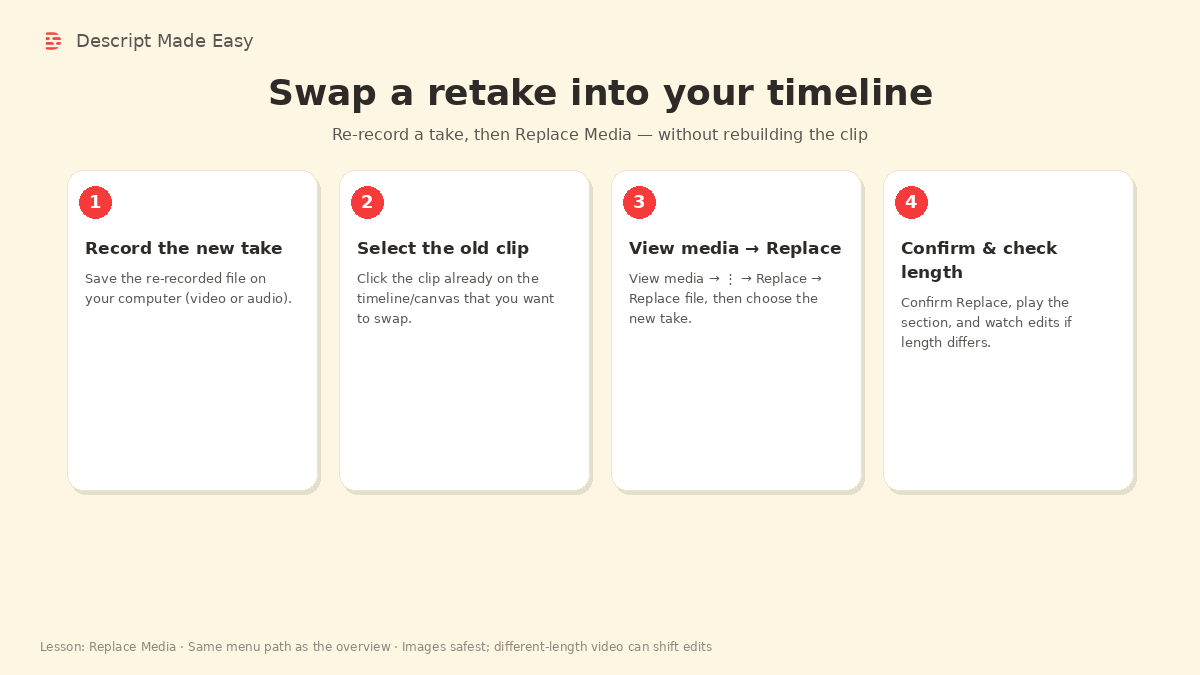
Four retake-swap steps: record the new take → select the old clip → View media → Replace → Replace file → confirm and check length.
How do I swap a new take into the timeline?
Same Replace Media menu path as the Descript Made Easy lesson, applied to a re-recorded take file:
- Record (or finish) the new take and save the file on your computer.
- Import the new take into the project if it is not there yet (optional if you will choose the file directly from disk in Replace file).
- Click the clip on the timeline/canvas that should use the new take.
- Choose View media — this opens the project-files popup for that source.
- Open the three-dot menu in the bottom-right of that popup.
- Choose Replace → Replace file, then pick the new take file and confirm Replace.
- Play the replaced section end-to-end. If the new take is a different length than the old one, re-check nearby edits.
Official Descript help (for accuracy, not extra features): Replace media in your composition and Replace file (swap a source everywhere it is used).
What should I re-check after a retake swap?
Replace Media swaps the source in place. After you drop in a new take:
- Play the section and confirm the new take looks and sounds right where the old clip sat.
- Watch video length. If the new take is longer or shorter than the old file, existing edits can shift.
- Images are the safest swap in the lesson’s framing; video and audio work too, with more care around length.
If a swap goes wrong, use Undo or Version History. See Don’t Fear Mistakes: Version History and Undo.
Is this the same as Remove Retakes?
No. This article teaches Replace Media: you have a new take file and you swap it into a clip already on the timeline via View media → Replace → Replace file. Remove Retakes / Underlord is a different feature and is not taught here. Stick to Replace Media when your job is “new file on disk → swap into the existing clip.”
Get the printable retake-swap checklist
Want a one-page checklist (record/import new take → select clip → View media → Replace file → confirm → play → check length/edits)? Enter your email below—button copy is Get the checklist. Feel free to print.
FAQ
How do I put a re-recorded take into a clip already on my Descript timeline?
Use Replace Media: click the clip, View media, three-dot menu, Replace → Replace file, choose the new take, confirm, then play.
Do I have to rebuild the scene after a retake?
No. Replace Media swaps the source in place so you do not rebuild placement from scratch.
Does this work for video and audio retakes, or only images?
The lesson says Replace Media works for images, videos, and audio. Images are the safest; different-length video can shift edits.
Is Replace Media the same as Remove Retakes?
No. Replace Media swaps in a new take file via View media → Replace → Replace file. Remove Retakes / Underlord is a different feature and is not covered in this post.
Where can I learn the Replace Media overview?
See Replace Media in Descript: Beginner Guide for the feature overview and wrong-date image demo.
Keep learning
- Descript for Beginners
- Replace Media in Descript: Beginner Guide
- Find and Manage Project Media in Descript
- Importing Media in Descript: Beginner Guide
- Media Library in Descript: Beginner Guide
- Descript Help: Replace media
- Descript Help: Replace file
- Free getting-started class
- Descript Made Easy
Want live help while you learn? Join the free 1-hour class: https://www.descriptmastery.com/getting-started-with-descript
Or go straight to Descript Made Easy: https://www.descriptmastery.com/
Check out the Descript Mastery School - my step-by-step blueprint for creating beautiful videos in 25% of the time.
Get 🔥 Descript tips!
Receive Descript tips, free resources, and easy-to-follow tutorials by email.
We hate SPAM. We will never sell your information, for any reason.